tutorial / Sep 11, 2026
Build a One-Way Photo Mirror with Syncthing
Create a recoverable, one-way Syncthing mirror for a photo folder, test both sync directions, and safely undo the setup.
The outcome and the limits
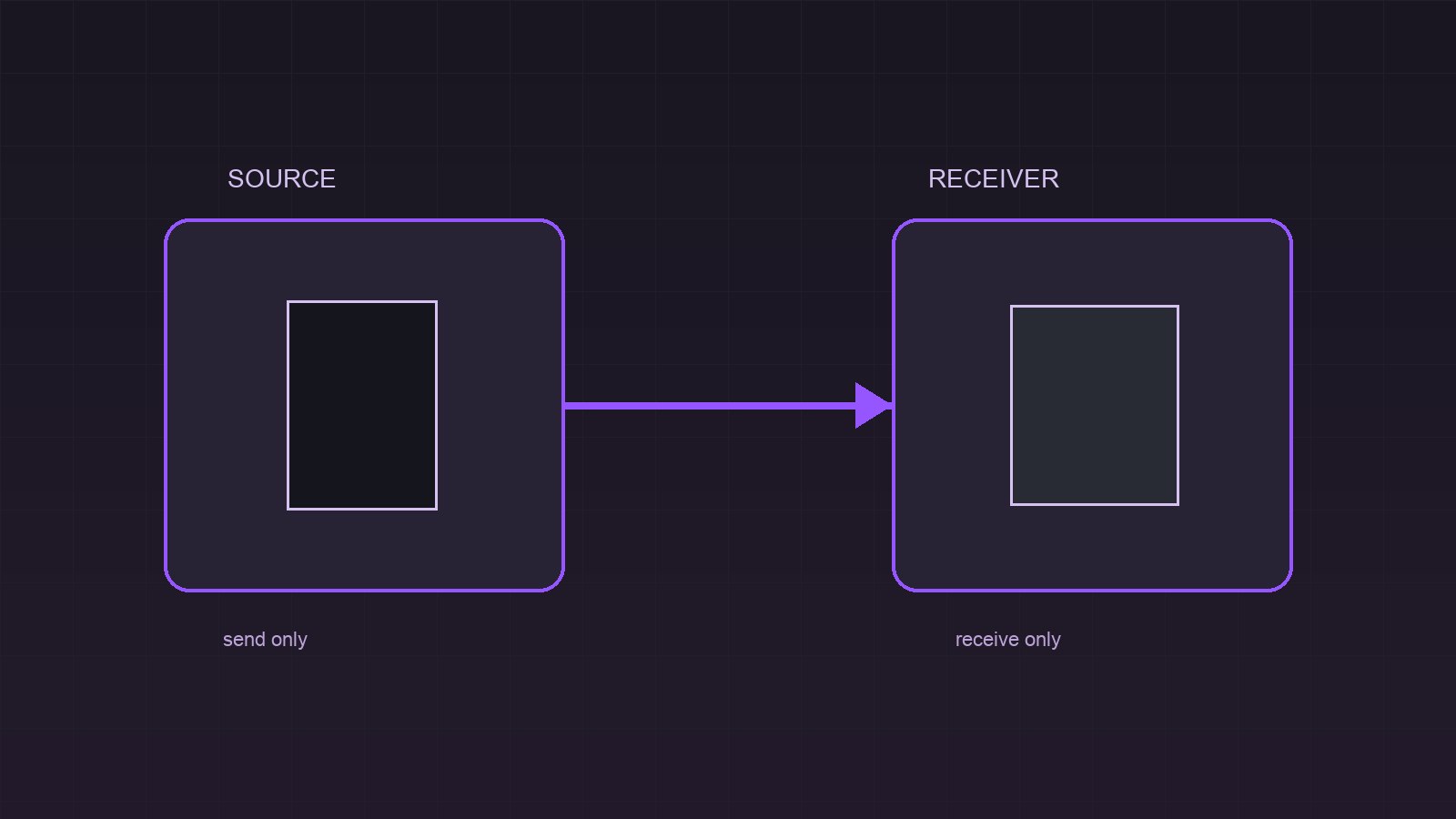
This tutorial builds a one-way photo mirror: one device holds the authoritative photo folder and a home server receives a copy. The source uses Syncthing’s Send Only folder type. The server uses Receive Only. That pairing is useful when the server should collect photos without becoming another editor of the source folder. It is not a replacement for a backup strategy: a source deletion can still arrive at the receiver, and a hardware failure can still remove the only available copies.
Syncthing’s folder types make the boundary explicit. A send-only source notices remote changes but does not apply them; a receive-only receiver applies cluster changes but does not distribute its own local edits. The receiver can keep prior remote versions, which gives an accidental source-side deletion a local recovery window.
Prerequisites and compatibility
Before you start, install a currently supported Syncthing build on both endpoints and confirm that each device is visible in the other device’s Remote Devices panel. This procedure assumes a Unix-like home server with a local Syncthing Web GUI. A mobile companion is suitable only when it can expose the chosen camera or import folder to Syncthing; do not assume an operating system grants background storage access or runs a third-party app continuously.
Use a dedicated destination, not the server’s active photo-library import directory. A photo application may rename, index, or modify files there, which would create receiver-side local changes. The account running Syncthing needs read access to the source folder and read/write access to the server landing zone. Estimate free space for the entire source plus the chosen version-retention window.
On the server, create a private landing zone before adding it in the GUI:
sudo install -d -o "$USER" -g "$USER" -m 0750 /srv/photos-inboxReplace the ownership arguments when Syncthing runs under a dedicated service account. The directory must stay mounted; Syncthing’s folder marker protects against a missing root, but it is not a substitute for monitoring storage health.
Choose the source and receiver roles
Decide the direction before sharing a folder. The source is the device whose photo folder is authoritative. The receiver is the home server copy. Do not set both endpoints to Send Only, and do not use ordinary Send & Receive for a landing zone that must reject local server edits.
For this example, use camera-mirror-2026 as the Folder ID on both ends. The ID identifies one shared folder; its local path may differ per device. Keep the auto-generated ID if another device already has one, rather than reusing a familiar label.
Create the source folder
- On the authoritative device, open Syncthing Web GUI → Add Folder → General. Set Folder Label to
Camera mirror source, keep or enter the Folder IDcamera-mirror-2026, and set Folder Path to the actual photo folder, such as/home/alex/Pictures/Camera. Do not paste a sample path unless it exists on that device. - Open Add Folder → Sharing, select the home-server device, and leave every unrelated peer unchecked. Sharing only with the intended receiver prevents the mirror from quietly becoming a broader photo distribution group.
- Open Add Folder → Advanced → Folder Type, choose Send Only, then select Save. If the folder already exists, use the folder card’s Edit → Advanced → Folder Type path instead.
- On the home server, accept the pending folder or select Add Folder → General. Use the same Folder ID, set Folder Path to
/srv/photos-inbox, then select the source device in Sharing. In Advanced → Folder Type, choose Receive Only and save.
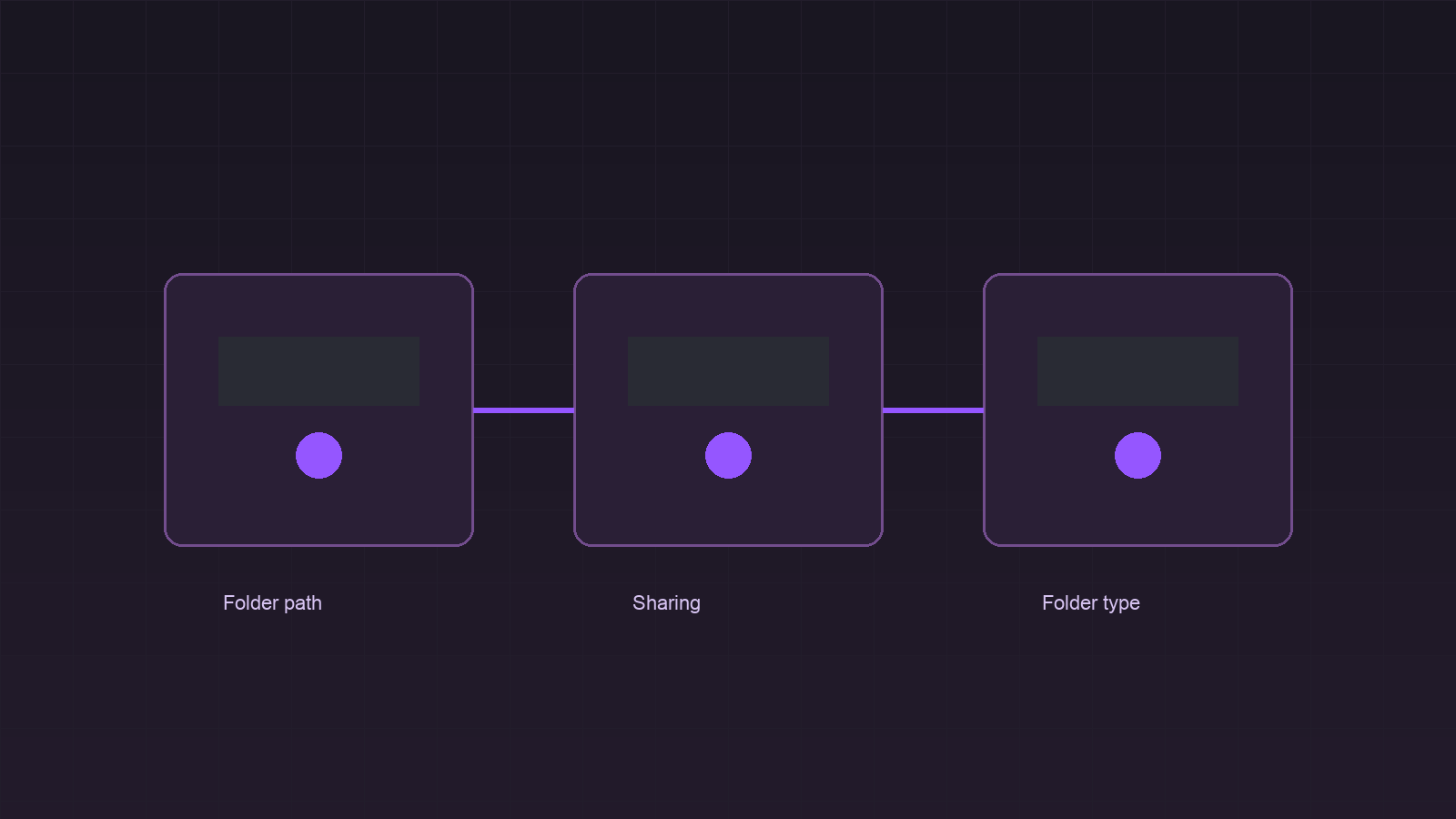
Wait for both folder cards to report Up to Date. The GUI’s folder details show Global State, Local State, and Out of Sync information; inspect those counters instead of treating a connected device as proof that the intended folder synchronized.
Add a local recovery window on the receiver
On the server folder card, select Edit → File Versioning. Choose Simple File Versioning, set Keep Versions to 5, and set Cleanout Days to a retention period that fits available capacity, such as 30. Save the change. Syncthing applies versioning per folder and per device, so configure it on the receiver where recovery is needed.
When the source replaces or deletes a file, the receiver can move the prior received version into .stversions below the folder path. Versioning does not archive an edit made locally on the same receiver, and it does not protect the source from a local deletion. Keep the landing zone private and avoid manual cleanup commands that touch .stversions until retention has been deliberately reviewed.
Verify the permitted and denied paths
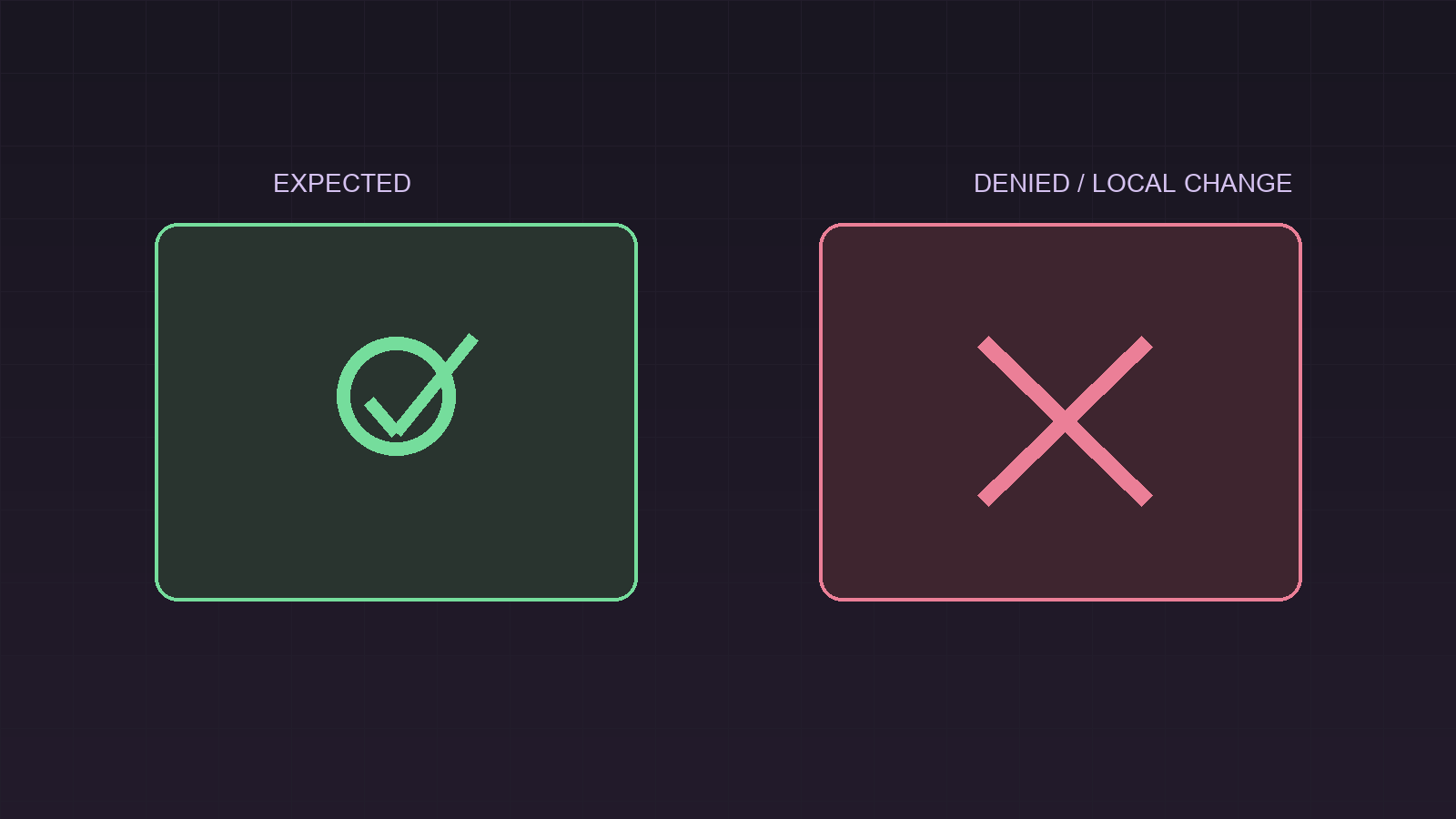
First test the allowed path. Put a harmless file in the source folder, such as mirror-test-2026-09.txt, then open the receiver folder in the Syncthing GUI and confirm the file appears under /srv/photos-inbox. Both cards should return to Up to Date after the transfer. Delete that test file from the source and confirm the receiver processes the remote deletion; the prior received version should appear under /srv/photos-inbox/.stversions when Simple Versioning is enabled.
Then test the denied path without touching a real photo. On the receiver, create /srv/photos-inbox/receiver-local-test.txt. The receive-only folder should show Local Additions or an out-of-sync state. Confirm that receiver-local-test.txt does not appear on the source device. This is the important negative test: the server is allowed to hold the incoming mirror, but it is not allowed to write a new file back into the authoritative photo folder.
Do not press Revert Local Changes until the test file is the only local change that matters. That action intentionally removes receiver-local changes to match the cluster state. After confirming the negative test, remove the test file manually or use Revert Local Changes only after checking the folder’s local-change list.
Troubleshooting and rollback
If the folder remains Unshared, reopen Edit → Sharing on both endpoints and confirm that the same remote device is selected. If the state is Stopped with a missing-marker error, do not create a new empty folder over the top of the old path. Restore the expected mount, confirm the path contents, recreate only the .stfolder marker if it was deleted accidentally, and select Rescan.
If a receiver file has reached the source, stop before using Override Changes. Check that the source still says Send Only and the receiver says Receive Only. On a send-only source, Override Changes enforces the source’s current state on the cluster and can delete files that exist only on the receiver. Capture any needed receiver-local file outside the shared directory first.
To roll the tutorial back safely, select Pause on the folder card at both endpoints, copy any required recovery files from .stversions to a separate directory, then use Edit → Sharing to deselect the peer. Finally, use Edit → Remove on each endpoint only after confirming the retained files and version store are copied elsewhere. Removing a Syncthing folder configuration is different from deleting its local files; read the confirmation wording carefully and keep the landing-zone directory until the rollback has been reviewed.
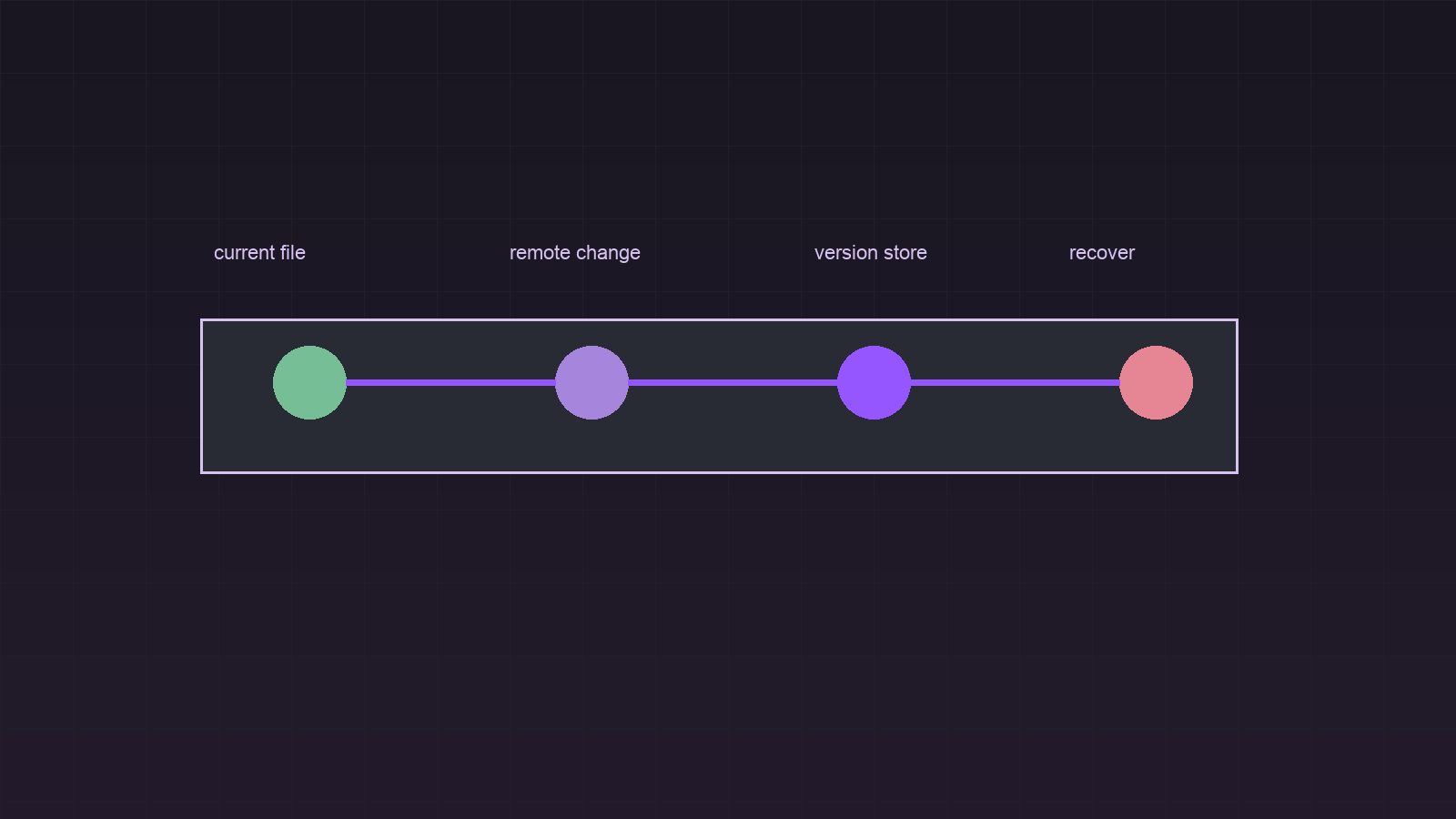
A one-way mirror is successful when the source can create and delete test content through the receiver, while a receiver-local test file does not enter the source. Keep that evidence with the operating notes for the homelab, and test the recovery copy after significant storage, client, or permission changes.
Verification ledger