
Install, connect, ask
Stackarr gives your AI assistant a safe, consistent way to run your self-hosted apps and homelab. Install one Docker service, connect your preferred chat client, and manage setup, everyday app tasks, backups, downloads, and repairs in plain language. Start with one app or a complete media stack; Stackarr only exposes what your homelab actually uses.
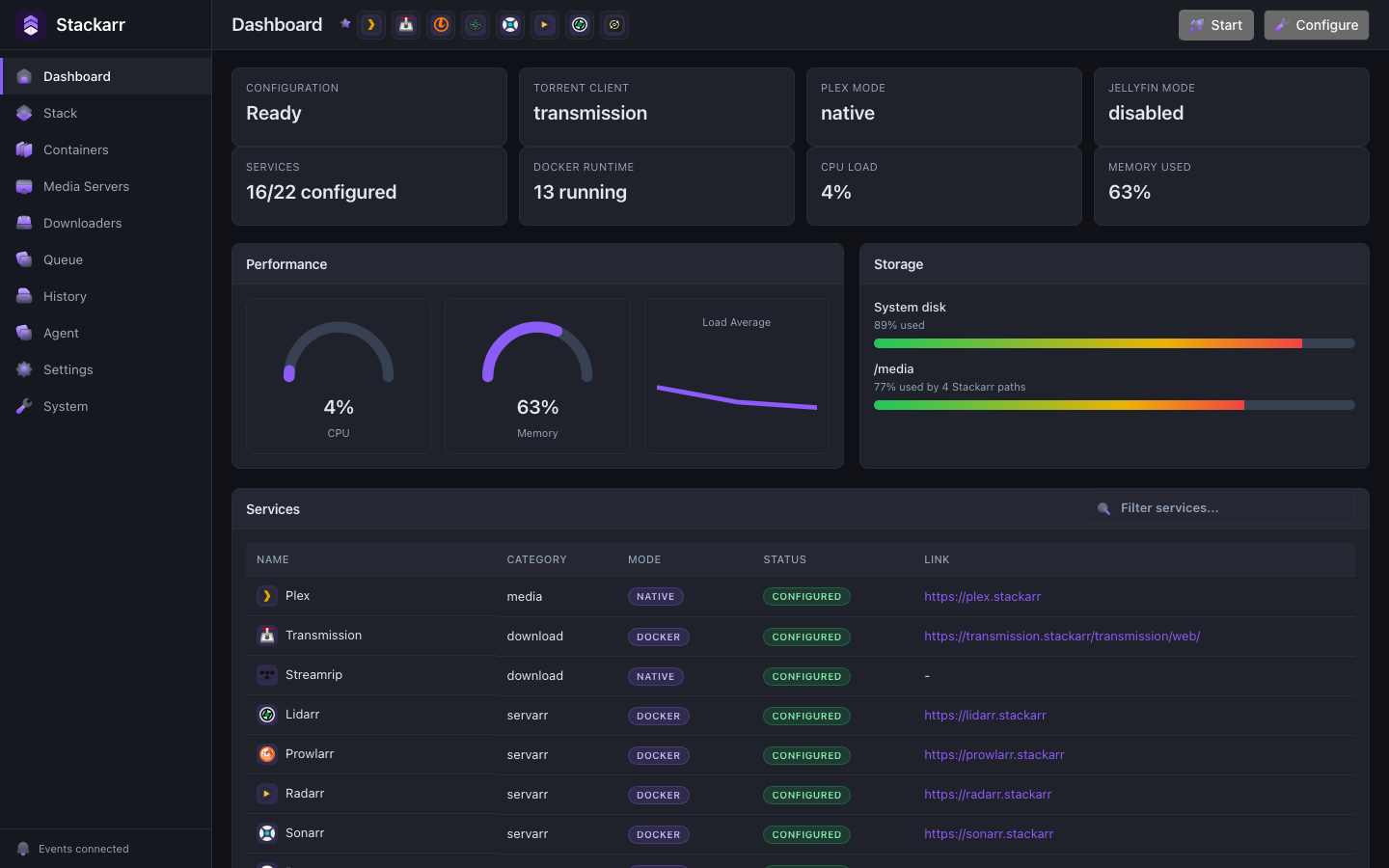
The dashboard is always available at the same time. Use chat, use the browser, or move between them whenever you want.
127.0.0.1 while you finish setup. Start agents with the manage profile and review prompts before any action that can interrupt a service.1. Start Stackarr
Stackarr is distributed as a Docker image. Download the Compose file and start the app:
mkdir -p stackarr && cd stackarr
curl -fsSL https://stackarr.app/docker-compose.yml -o docker-compose.yml
docker compose --profile stackarr up -d app
Open http://127.0.0.1:7777/setup.
2. Connect your assistant
For Codex, generate the local MCP connection from the running container:
docker exec app /app/bin/stackarr mcp config codex --profile adminRun the generated command on the Docker host. Use admin while the agent sets up infrastructure, then switch to manage for normal use. The generator also supports Claude, LM Studio, ChatGPT, Hermes, OpenClaw, and other clients.
3. Ask for the outcome
Start with:
Inspect my Stackarr setup, recommend safe defaults, show me the plan, and ask before applying changes or interrupting a media service.
Once setup is complete, try:
- “Is anything in my stack unhealthy?”
- “Request this movie and use my normal quality profile.”
- “Why is this download stalled?”
- “Back up the stack before updating it.”
- “Show me what changed today.”
STACKARR_MCP_PROFILE=unrestricted in the client connection. This deliberately removes per-action approval prompts. Only the person configuring the connection can grant that authority.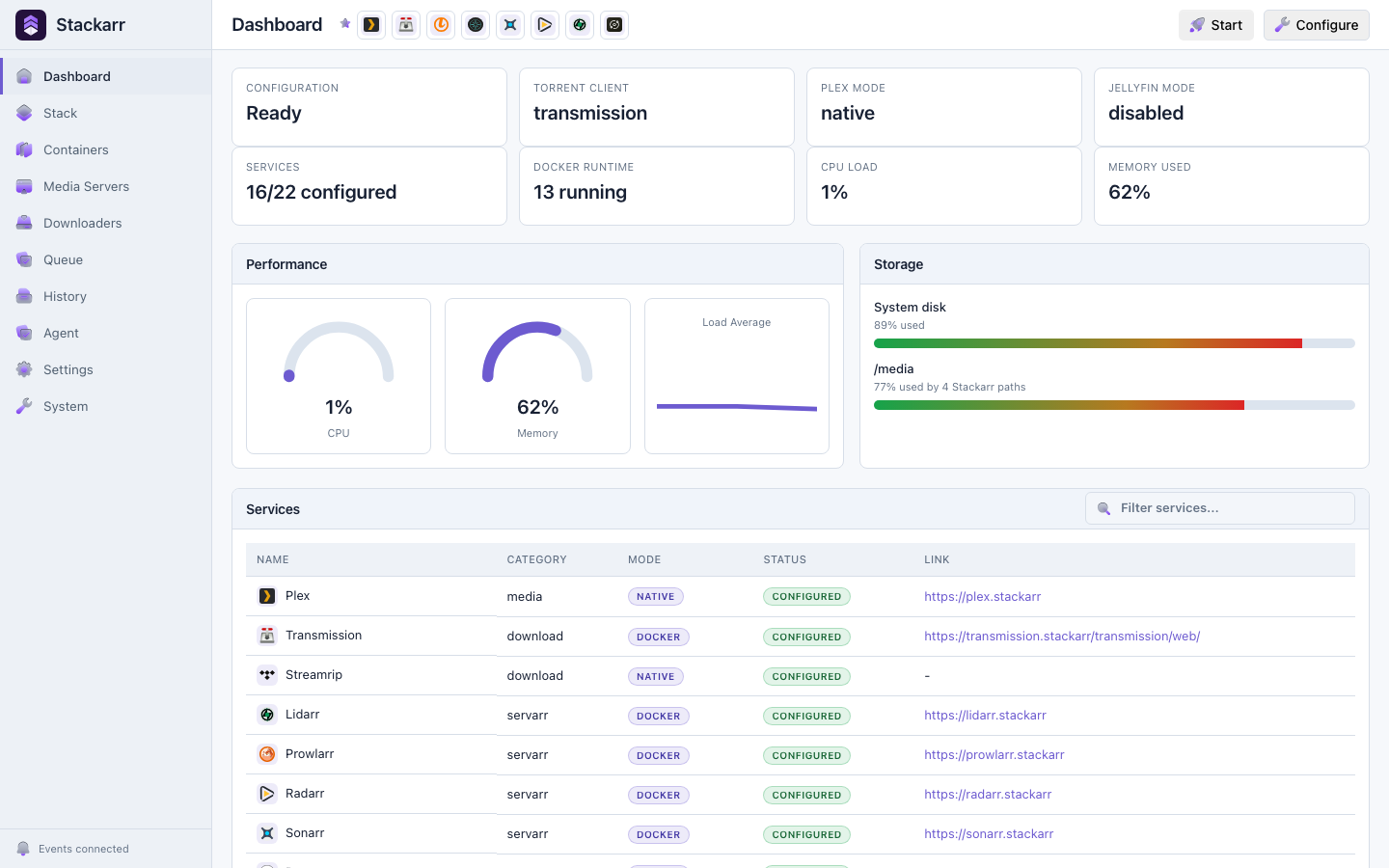
What Stackarr brings together
Apps


























Services



Stackarr only exposes agent actions for the services you select. Before setup, the catalog stays focused on installation and health. Reconnect your MCP client after changing enabled apps so it can load the updated actions.
Everyday control in the dashboard
The browser follows the same app-centered model as chat:
- Apps is where you add an app later, change its Stackarr settings, choose how links open, and publish an optional Cloudflare route.
- Pinned apps stay in the main navigation and always use the current Portless or local URL rather than a stale saved address.
- Home adapts performance cards to Plex native telemetry when available, then Jellyfin, Immich, RomM, or another configured container. It also keeps every mounted homelab drive visible.
- Infrastructure refreshes automatically, shows live CPU, memory, and network history, and keeps destructive Docker actions behind confirmation prompts.
- Needs attention links directly to the setup, failed action, storage, or diagnostic screen that can resolve the item.
New installs use Portless app links by default, such as https://immich.stack, so bookmarks and dashboard buttons do not depend on port numbers. You can switch back to localhost links from any app's Settings panel.
Where to go next
- Install Stackarr for the Docker requirements and data layout.
- Agent Setup for the recommended chat-led onboarding flow.
- MCP connections for Codex, Claude, LM Studio, and compatible clients.
- Safety model for authority profiles, approvals, and activity history.
- Configure your stack to use the browser instead of chat.