tutorial / Aug 15, 2026
Build a Reliable Matter-over-Thread Network in Home Assistant
Create one preferred Thread network, commission Matter devices correctly, test isolation failures, and keep a safe recovery path.
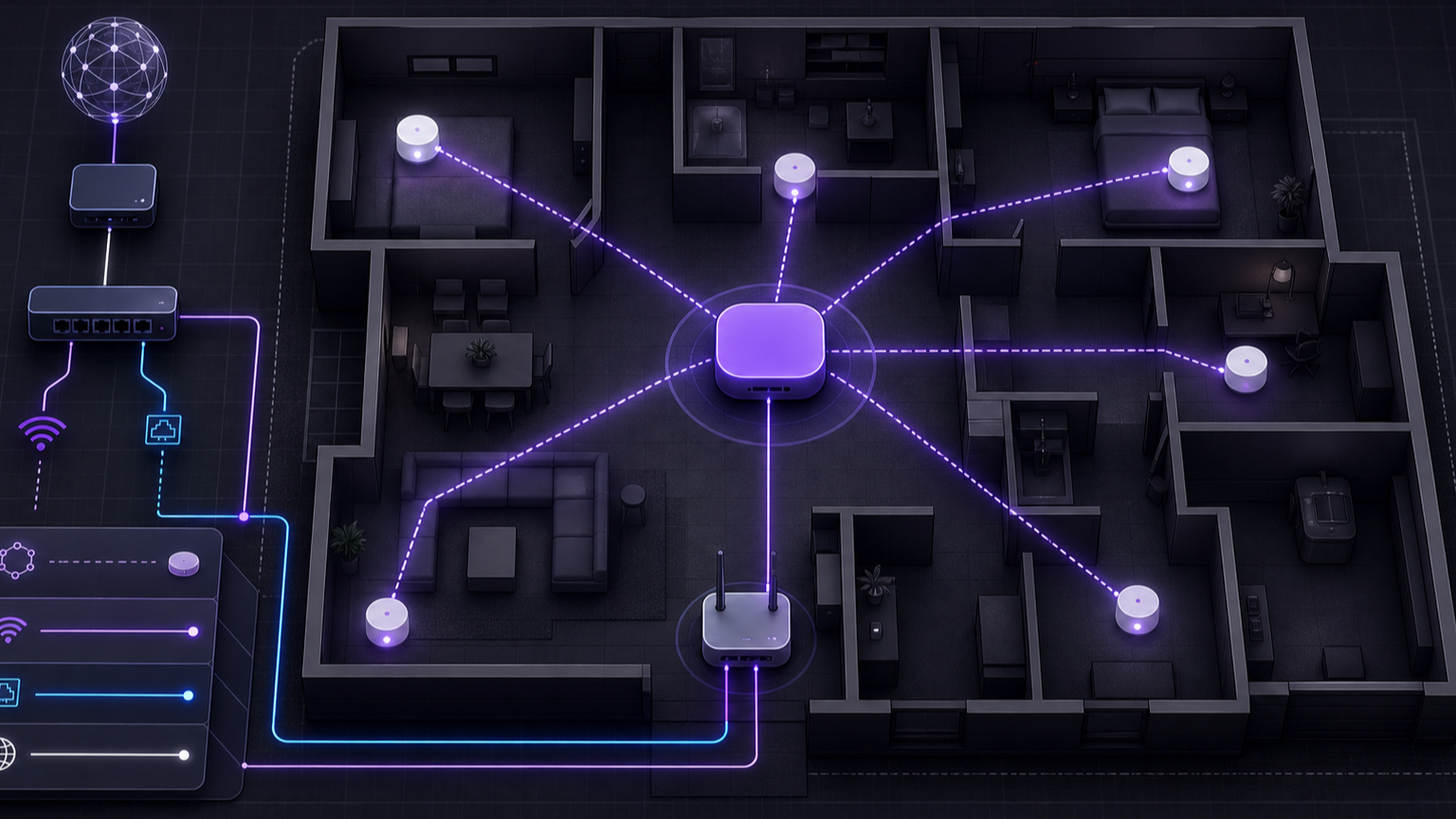
Matter-over-Thread failures in a self-hosted smart home often look like one problem even when four separate layers are involved. The Matter controller on the home server manages the device, Thread carries low-power IPv6 traffic, a border router joins the mesh to Ethernet or Wi-Fi, and the home network carries discovery and control packets. This tutorial builds one predictable path through those layers. The result is a Home Assistant setup that can commission a device, survive a border-router change, and reject traffic from an isolated guest network.
Before you start: prerequisites and limits
Use a current Home Assistant release and update the Companion app first. The supported integrated Matter Server path requires Home Assistant OS. The official app is unavailable on 32-bit systems. A container installation can use the separate Matter Server container, but Home Assistant marks that arrangement as unsupported and expects the host network to meet Matter's IPv6 and discovery needs.
Prepare a Matter-over-Thread device, its QR code or numeric setup code, and a powered Thread border router. Confirm the package or manufacturer documentation shows both Matter and Thread support. A Thread mark alone describes the network transport, not the control protocol. Keep a private copy of the setup code because a factory reset cannot be recovered without it.
For Android, use Android 8.1 or newer, with Android 12 or newer preferred. Install the full Companion app from Google Play, enable Bluetooth, and set its Location permission to Allow all the time during commissioning. For iPhone, use iOS 16 or newer, current Companion software, and Bluetooth. The phone, Home Assistant, and border router must share a trusted local network without client isolation.
The Home Assistant Matter guide documents these platform limits and commissioning requirements. The Thread guide explains credential handling and preferred networks.
Understand the four-part route
Thread is an IPv6 mesh for small, low-bandwidth devices. It does not provide the Matter device model by itself. Matter adds the controller and encrypted application protocol. The border router forwards packets between the Thread mesh and the normal home network. Home Assistant then reaches its Matter Server over a WebSocket connection.
A border router must also support discovery between the two sides. OpenThread identifies mDNS on the infrastructure link and the Service Registration Protocol inside Thread as core border-router functions. This is why a router or VLAN policy that blocks local IPv6 multicast can break discovery while ordinary IPv4 web pages still work. The OpenThread border-router overview describes the required connectivity and discovery roles.
Build one preferred Thread network
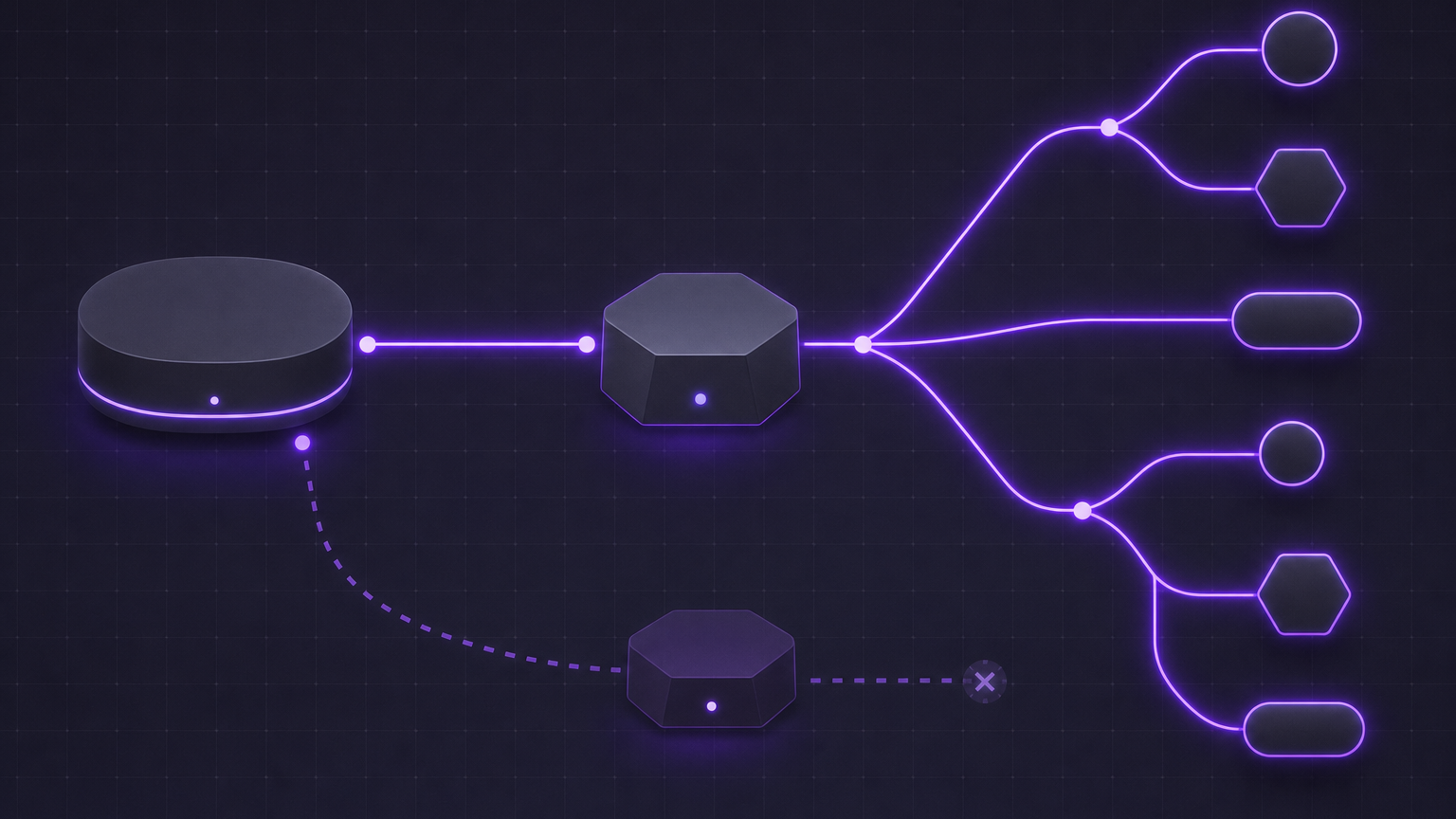
- In Home Assistant, open Settings > Devices & services. Select Thread. If it does not appear, verify that Home Assistant has discovered a border router or finish the OpenThread Border Router app setup first.
- If this is the first Thread network, install the OpenThread Border Router app through Settings > Apps. Open Settings > Apps > OpenThread Border Router > Configuration, select the Thread radio, enter the manufacturer's baud rate, save, and restart the app. For a third-party router, add OpenThread Border Router from Settings > Devices & services > Add Integration. Enter its trusted-LAN REST URL, usually
http://BORDER_ROUTER_IP:8081. Never publish that port to the internet. - Return to Settings > Devices & services > Thread. Open its configuration page and identify every listed network. If Apple or Google already owns the network, use the Companion app on that platform to import its credentials into Home Assistant. Select Make preferred network only after the credential icon confirms that Home Assistant possesses the selected network's credentials.
- Send the preferred network credentials to the commissioning phone. On the Thread configuration page, use Send credentials to phone when offered. Keep any old border router running until a new Matter device completes commissioning and control tests.
The Home Assistant Thread documentation gives separate flows for a first network, an imported Apple or Google network, and adapter migration.
Configure Matter and commission one device
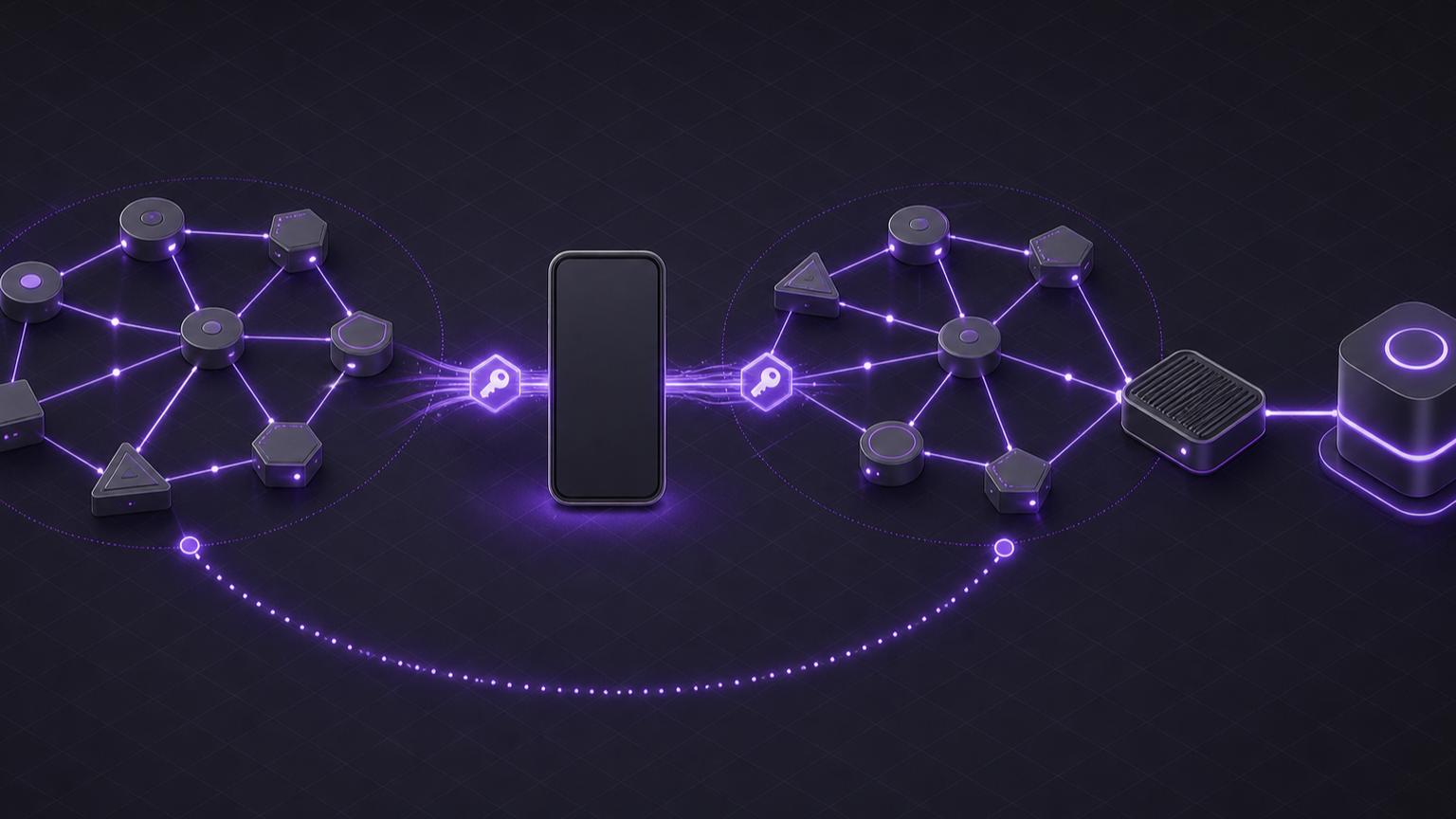
- Open Settings > Devices & services > Add Integration > Matter. On Home Assistant OS, accept the default connection method so Home Assistant installs the official Matter Server app. If a supported server already exists elsewhere, clear the default option and provide that server's WebSocket address. Wait until both the app and integration report ready.
- Put the device in pairing mode. On the phone, open the Home Assistant Companion app, then go to Settings > Matter > Add device. Choose the option for a new device, scan the QR code, and keep the phone near both the device and border router. Bluetooth handles the initial exchange. After commissioning, control moves to Wi-Fi or Thread.
- Assign the device to an area, but do not build critical automations yet. Toggle one entity several times and wait for state changes to return. Battery devices can sleep between reports, so test the control or sensor behavior the manufacturer documents instead of expecting continuous traffic.
Verify allowed and denied paths
First test the allowed route. Keep the phone on the trusted Wi-Fi network. In Settings > Devices & services > Matter, open the new device and issue a safe control action. Confirm the physical result and the matching entity state. Restart only the Matter Server app, then repeat the action. A successful test proves that the stored fabric survives an application restart.
Next test the boundary without changing the Thread mesh. Connect the phone to a guest SSID or test VLAN that has client isolation and no route to Home Assistant. Start the add-device flow but do not reset the commissioned device or scan its production setup code. The app should fail to reach the controller or should stop before commissioning. It must not gain direct access to Home Assistant or the border-router REST endpoint. Return the phone to trusted Wi-Fi and confirm the existing device still responds.
Also check Settings > Devices & services > Thread. The intended network must remain preferred, and Home Assistant must show that it has its credentials. If two networks remain separate, do not commission additional devices until the target network is unambiguous.
Troubleshoot commissioning and control
If commissioning stops at network checks, confirm the phone is on the same trusted Wi-Fi as Home Assistant and the border router. On Android, verify the full Play Store build and Location > Allow all the time. Re-enable Bluetooth, move near the device, and try once more. Do not repeatedly factory-reset the device before checking these permissions.
If Home Assistant reports that a border router is required, open the Thread integration and confirm a border router is present. For the Home Assistant app, inspect Settings > Apps > OpenThread Border Router > Logs. A third-party router can be added with the local REST URL described by the OpenThread Border Router integration. Keep port 8081 restricted to the trusted LAN.
If commissioning succeeds but control is intermittent, inspect router or firewall rules for IPv6, multicast DNS, and isolation between the Home Assistant host and border router. Do not solve the issue by opening broad inbound internet access. Download Matter diagnostics from the integration or device menu before deleting anything, then record the preferred network name and border-router state.
Roll back without creating a second mesh
Stop commissioning new devices. If a new adapter or border router caused the failure, restore the previous adapter and start the previous border-router service. In Settings > Devices & services > Thread, select the former network and use Make preferred network only when its saved credentials are still present. Send those credentials back to the phone, then test an existing device.
If the device remains on the old fabric, leave it there while network recovery continues. Factory reset and recommission only as the final step, because reset removes the device's existing fabric membership and requires the saved QR or numeric code. Remove the failed Matter entry only after the public device state and diagnostic record confirm which copy is stale. This order preserves the last known working route and avoids accidentally creating another isolated Thread network.
Verification ledger