troubleshooting / Aug 12, 2026
Fix Docker Volume Permission Errors Without Running Everything as Root
Diagnose Docker bind-mount permission errors, align container identity safely, and verify both required writes and protected read-only paths.
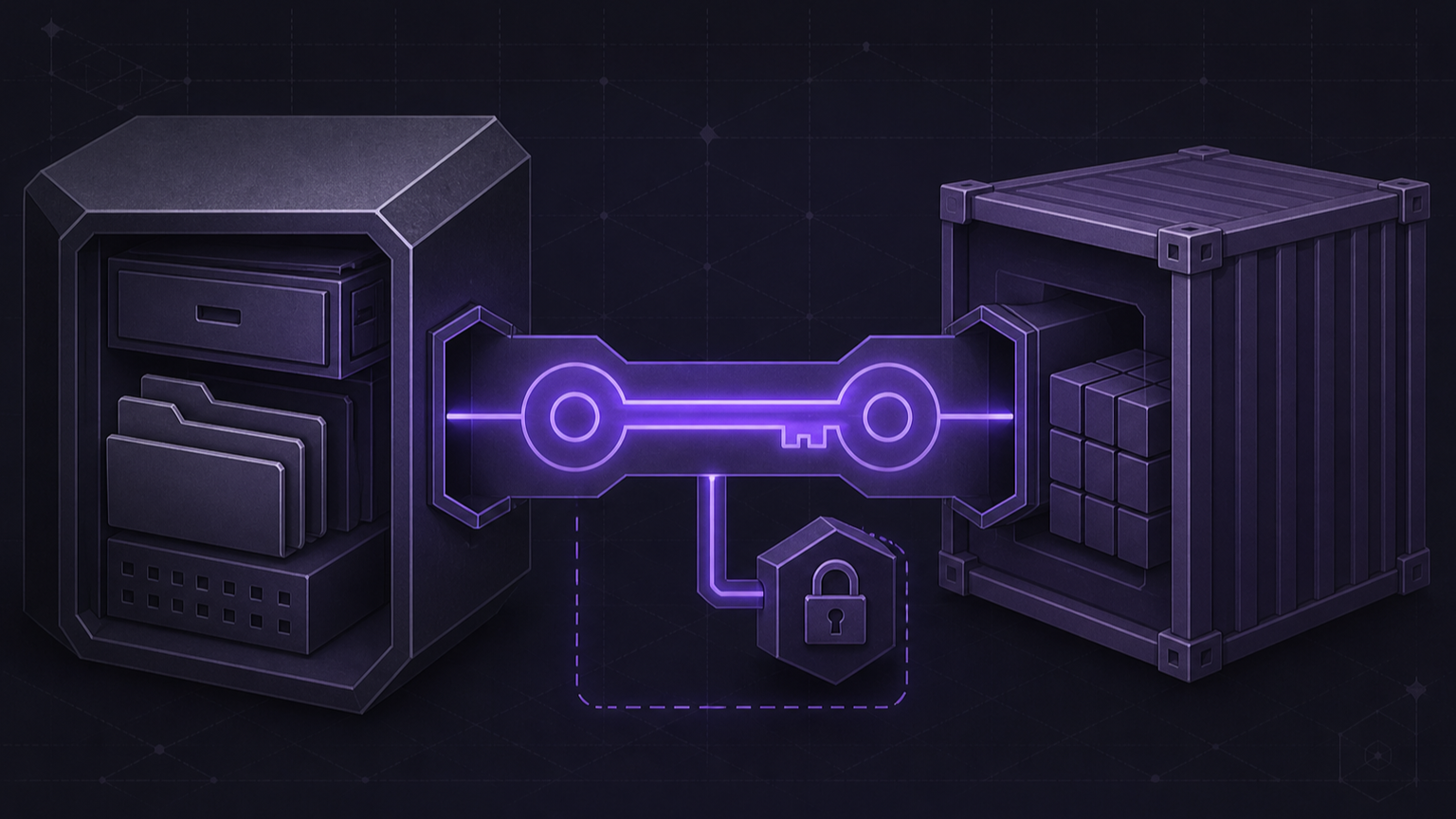
Why Docker volume permission errors happen
A self-hosted media server can start normally and still fail when it writes a download, database, thumbnail, or configuration file. The container sees a mounted path, but the process inside it does not have the access required by the host filesystem.
Docker bind mounts connect a host path directly to a container path. Docker documents that these mounts are writable by default. That means a process with write access can create, modify, or delete host files through the mount. A useful fix must restore only the access the service needs, not give every container unrestricted access.
The goal of this guide is concrete: identify the numeric user and group used by one service, align the intended host directory, confirm required writes, and confirm a protected path still rejects writes.
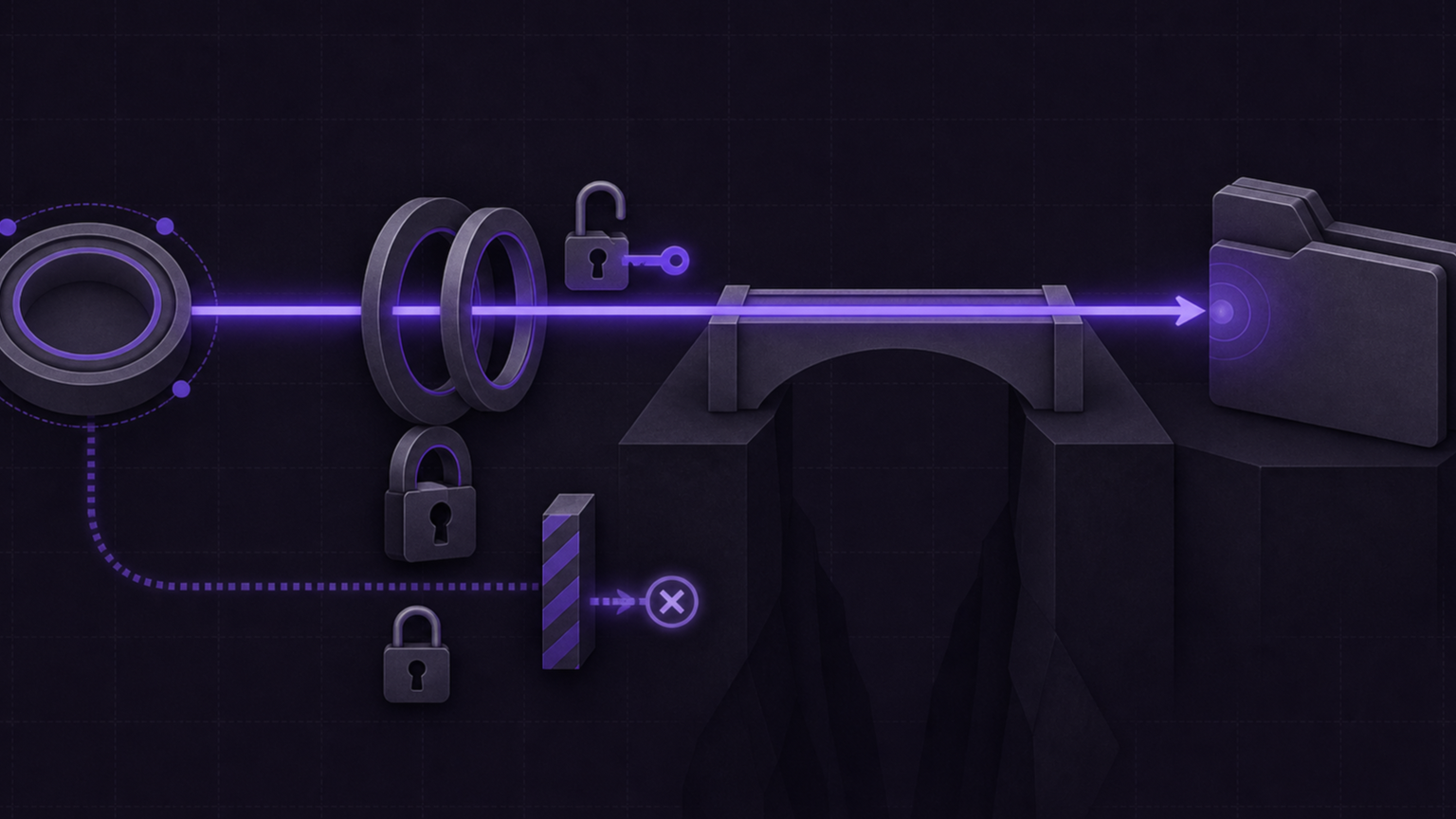
Prerequisites and compatibility limits
Prepare these facts before making a change:
- The Compose project directory and the affected service name.
- Shell access to the Docker host.
- Permission to inspect containers and the affected host directory.
- A copy of the current Compose file and environment values.
- The official documentation for the container image.
Identity controls differ by image. LinuxServer.io images support PUID and PGID, and LinuxServer.io currently advises against using Docker's generic --user override with its images. Other images can support Compose user, a named internal account, or a different environment contract. Follow the image owner's current instructions.
On normal Linux filesystems, numeric user and group IDs control access. Names can differ between host and container. Network-attached storage can add access control lists, identity mapping, or root squashing. Docker Desktop and OrbStack also add a host-to-virtual-machine file-sharing layer. A local ownership change cannot repair a path that the storage server or desktop runtime refuses to share.
Setup step 1: record the effective container identity
- Save the rendered Compose configuration before editing anything.
docker compose config > compose.before.yaml- Find the identity used by the running process.
docker compose exec SERVICE id
docker compose exec SERVICE sh -lc 'umask'
Replace SERVICE with the real Compose service name. The id output shows the numeric user ID, primary group ID, and supplemental groups. Record all three. The umask value affects permissions on newly created files, but it cannot grant access that the parent directory denies.
- Check whether the image expects environment variables or a Compose user override.
docker compose config | sed -n '/SERVICE:/,/^[^ ]/p'Do not add both mechanisms without documentation that supports the combination. An unsupported user override can prevent entrypoint setup, updates, or writes to the image's configuration path.
Setup step 2: inspect the mount and host directory
- Inspect the live mounts instead of assuming the Compose file created the intended mapping.
docker inspect CONTAINER --format '{{json .Mounts}}'Replace CONTAINER with the live container name or ID. Confirm the source, destination, and writable state. Docker creates bind mounts on the daemon host. A path on a remote Docker client is not automatically a path on the daemon.
- Record the host directory's numeric owner, group, and mode.
On GNU/Linux:
stat -c '%u:%g %a %n' /srv/downloadsOn macOS:
stat -f '%u:%g %Lp %N' /srv/downloadsCompare the owner and group with the IDs from id. Also inspect every parent directory. Directory traversal requires execute permission on each parent.
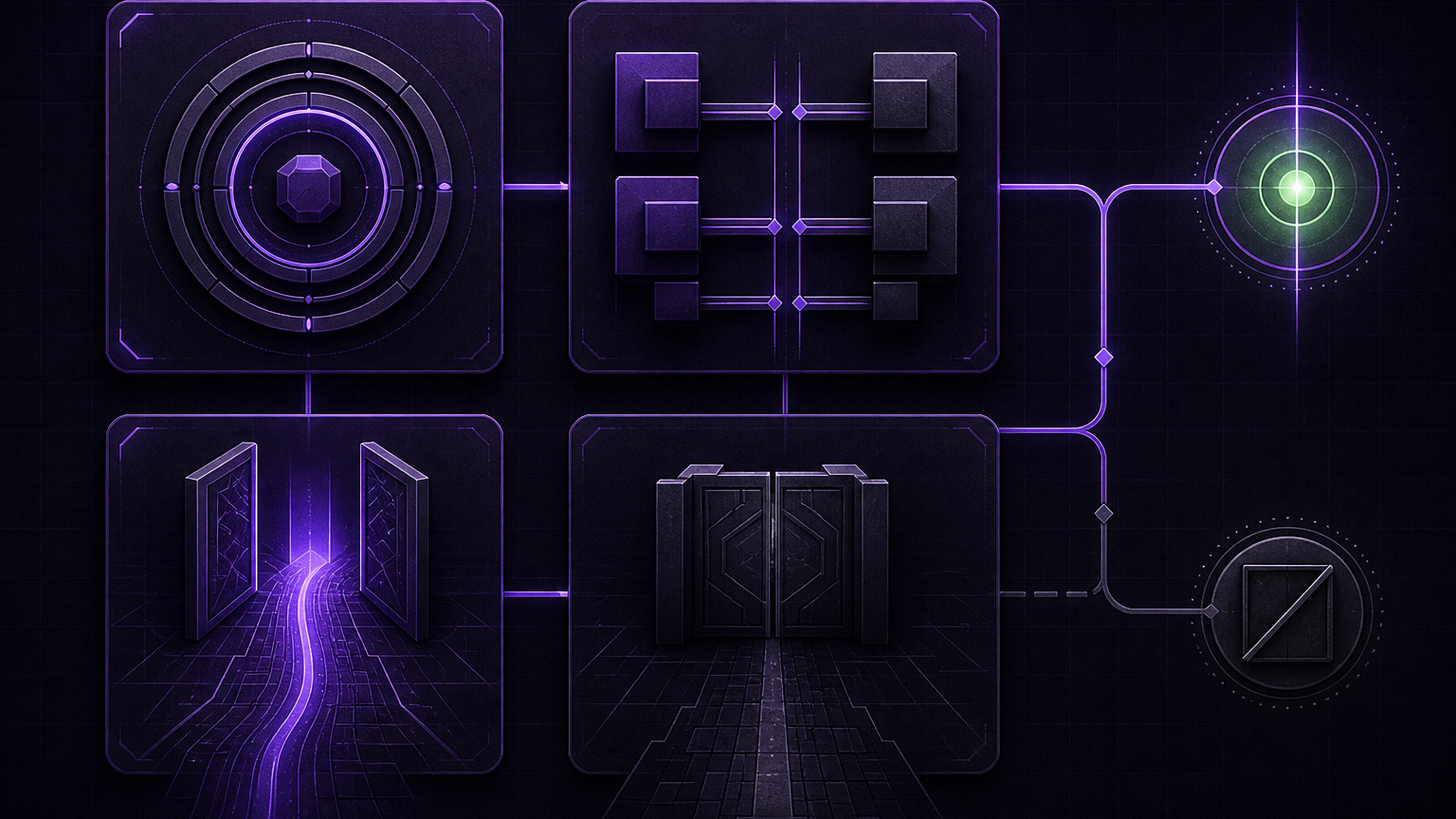
Setup step 3: apply the smallest correction
- Choose one supported correction.
For a LinuxServer.io image, set the documented identity values:
services:
  downloader:
    environment:
      PUID: "1000"
      PGID: "1000"
For an image that explicitly supports a runtime user, use its documented Compose form:
services:
  app:
    user: "1000:1000"
If several services need one shared directory, keep distinct users and add the intended shared group where the image supports it:
services:
  app:
    group_add:
      - "1000"
Change host ownership only on a dedicated directory whose purpose is clear:
sudo chown -R 1000:1000 /srv/app-data/downloaderNever substitute /, an entire home directory, or a mixed NAS share. Avoid chmod -R 777. World-writable permissions expand access and hide the identity mismatch.
- Mark mounts read-only when the service needs only reads.
services:
  scanner:
    volumes:
      - /srv/media:/media:ro
Docker's ro mount option protects that host path from writes through this mount. Compose read_only: true protects the container filesystem, but separately mounted paths still need their own correct access mode.
Setup step 4: recreate only the affected service
- Review the rendered model before applying it.
docker compose config > compose.after.yaml
diff -u compose.before.yaml compose.after.yaml
The diff should contain only the intended identity, group, or mount change. If it changes unrelated ports, images, paths, or secrets, stop and correct the configuration source.
- Recreate the affected service and inspect its new identity.
docker compose up -d --no-deps SERVICE
docker compose exec SERVICE id
docker compose ps SERVICE
Wait for the service to become healthy when a health check exists. Check its recent logs for startup failures before testing writes.
Verification: prove an allowed write and a denied write
- Test one path that must be writable.
docker compose exec SERVICE sh -lc 'touch /downloads/.permission-test && rm /downloads/.permission-test'Expected result: exit code 0 with no leftover file. Use a dedicated probe filename. Do not test by deleting or replacing real media.
- Test one path that must stay protected.
docker compose exec SERVICE sh -lc 'touch /media/.must-fail'Expected result: a non-zero exit with a read-only or permission-denied error. Confirm that /media/.must-fail does not exist on the host. If this command succeeds, the service still has broader write access than intended.
Users can run docker exec app /app/bin/stackarr permissions audit to check configured roots and live service mounts. Without Stackarr, the id, stat, docker inspect, and two probe commands above produce the equivalent evidence.
Troubleshoot failures that remain
If the live mount points to the wrong source, fix the path or environment value first. Permission changes on the wrong directory cannot help.
If the owner and primary group match but writes fail, inspect supplemental groups and all parent directories. Compose group_add can supply an intended shared group, but the process must show that group in id after recreation.
If a desktop runtime reports a missing or inaccessible source, share only the selected directory with Docker Desktop or OrbStack. Then recreate the service and repeat both probes.
If storage is remote, check the server-side export, access control list, identity mapping, and root-squash policy. Run ownership changes on the authoritative storage system, not blindly on the Docker client.
If the container fails after adding user, remove that override. Restore the image owner's supported identity mechanism. LinuxServer.io containers should use their documented PUID and PGID flow.
Rollback safely
Restore the saved Compose values for user, PUID, PGID, group_add, and mount modes. Render the configuration again and confirm that the rollback diff is limited to those fields.
Recreate only the affected service:
docker compose up -d --no-deps SERVICEIf ownership changed, use the recorded stat result to restore only the dedicated application directory. Do not run a broad recursive rollback across shared media or a whole NAS. Current files can belong to other services or users.
Finish by running the required-write probe and the protected-path denial probe again. A safe rollback restores both service operation and the previous access boundary.
Verification ledger