troubleshooting / Aug 22, 2026
Fix a RomM Scan That Finds No Platforms
Correct a RomM Docker bind mount, prove the library tree is visible, run a focused scan, and roll back safely if the route is wrong.
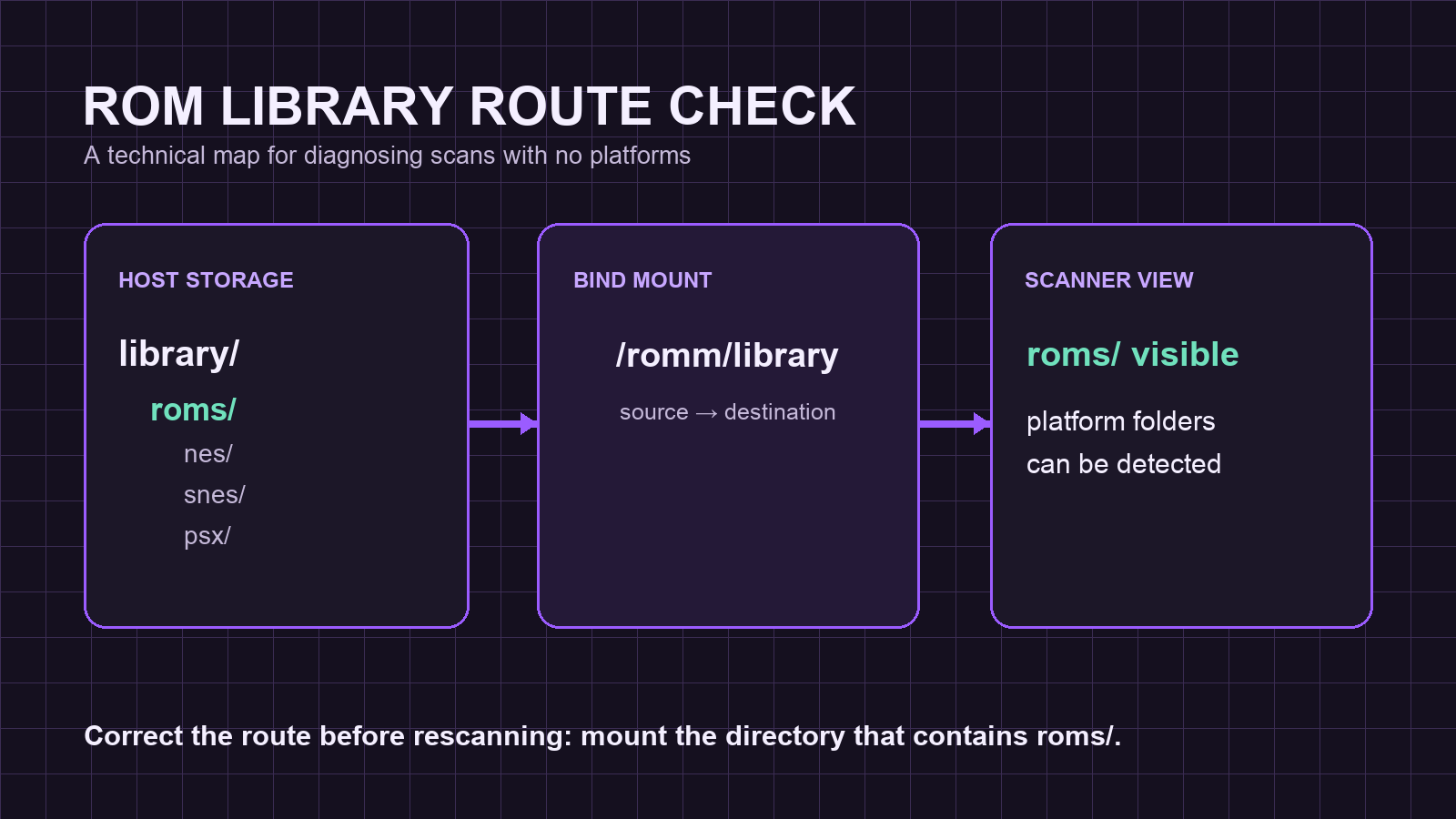
Outcome: make the RomM scanner see the library you already have
A RomM scan that finishes almost immediately with no platforms is usually a route problem, not a reason to rebuild a game collection. RomM expects a specific folder shape below /romm/library; Docker bind mounts decide what the container can see at that path. The useful outcome is simple: the container sees the directory that contains roms/, RomM can enumerate platform folders, and a short rescan finds candidates without touching the game files.
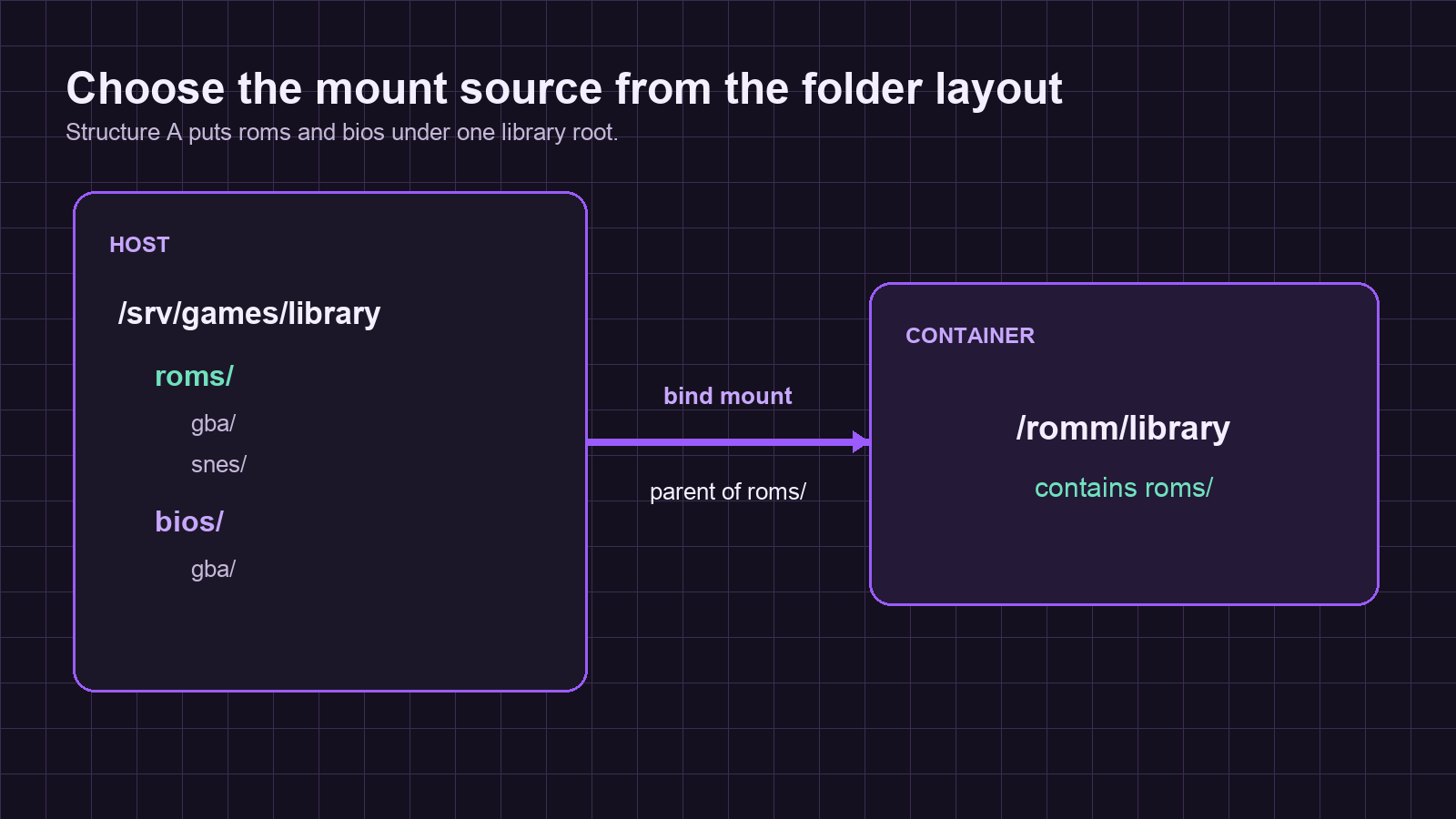
This guide uses RomM's recommended Structure A: one library root containing roms/ and, optionally, bios/. It applies to Docker and Docker Compose deployments. It does not make a missing or unsupported game format compatible, and it does not fix metadata-provider outages. Start with the mounted filesystem before changing scan settings.
Prerequisites and compatibility limits
Before changing the service, collect the following:
- Permission to inspect and recreate the RomM container with
docker compose. - The host path that holds the game library. For Structure A, that path must be the parent of
roms/, not one platform directory and not the directory above the library root. - A shell in the Docker context that runs RomM. With a remote Docker daemon, bind-mount paths live on the daemon host rather than the laptop running the command.
- A backup or copy of the current Compose file before editing it.
RomM also accepts Structure B, where every platform contains its own roms/ directory. Do not mix assumptions between the two layouts. The commands below diagnose Structure A because it is the recommended layout in the RomM documentation.
Setup: work through the route in order
- Confirm that the host path is the library root containing
roms/. - Inspect the active container mount rather than relying on an old Compose file.
- Recreate RomM only after correcting the source and target.
- Run a Quick scan only after the container can list platform folders.
1. Confirm the host folder is the library root
Replace /srv/games/library with the real host path. The command should show a roms/ directory and at least one platform folder below it.
find /srv/games/library -maxdepth 2 -type d | sortA Structure A result resembles this:
/srv/games/library
/srv/games/library/bios
/srv/games/library/roms
/srv/games/library/roms/snes
If the first useful directory is /srv/games/library/roms/snes, do not mount that snes directory at /romm/library. That hides the roms/ layer RomM looks for. Likewise, mounting /srv/games at /romm/library leaves the library one level too deep.
2. Inspect the mount Docker actually created
A Compose file can look right while an older container still uses the previous mount. Inspect the running container before editing anything else:
docker inspect romm --format '{{range .Mounts}}{{printf "%s -> %s (RW=%t)\n" .Source .Destination .RW}}{{end}}'For Structure A, the expected line maps the parent of `roms/` to /romm/library, for example:
/srv/games/library -> /romm/library (RW=true)If the destination is different, or the source skips library, correct the RomM service in compose.yaml. Docker's long bind-mount form makes the source and target unambiguous:
services:
  romm:
    volumes:
      - type: bind
        source: /srv/games/library
        target: /romm/library
Docker bind mounts expose a host path inside the container, so changing this value changes the container's view of the collection. Keep RomM assets, configuration, and databases on their own durable paths; this step changes only the game-library route.
3. Recreate RomM and test the container view
After saving the Compose change, recreate only RomM:
docker compose up -d --force-recreate romm
docker exec romm sh -lc 'test -d /romm/library/roms && find /romm/library/roms -mindepth 1 -maxdepth 1 -type d -print'
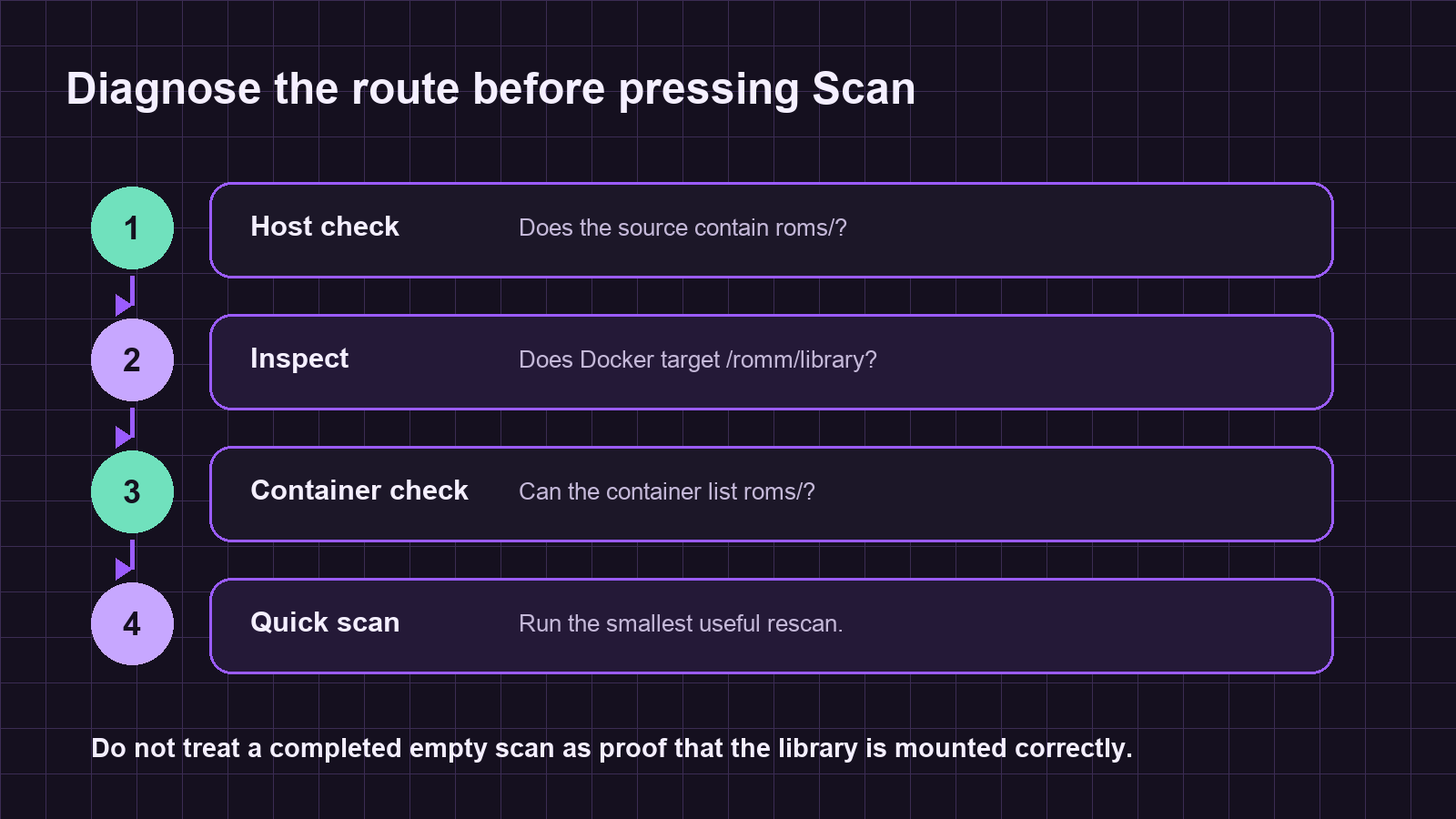
The first command applies the revised mount. The second command is the allowed-path test: it must print one or more platform folders. If it prints nothing or exits non-zero, stop here. Running a full scan cannot repair a path the container cannot enumerate.
4. Run the smallest useful scan
Open RomM, go to the Scan page, and choose Quick. Quick scanning skips files already catalogued, which makes it safer for confirming a corrected mount than immediately launching a long full-library scan. Check the scan result for detected platforms before starting provider matching or enrichment work.
When the route is now correct but a platform remains absent, compare its folder name with RomM's supported platform slugs. For a deliberately custom folder name, add a system.platforms mapping in RomM's config.yml, then repeat the container-view command before scanning again.
Verification: prove the good path and the denied path
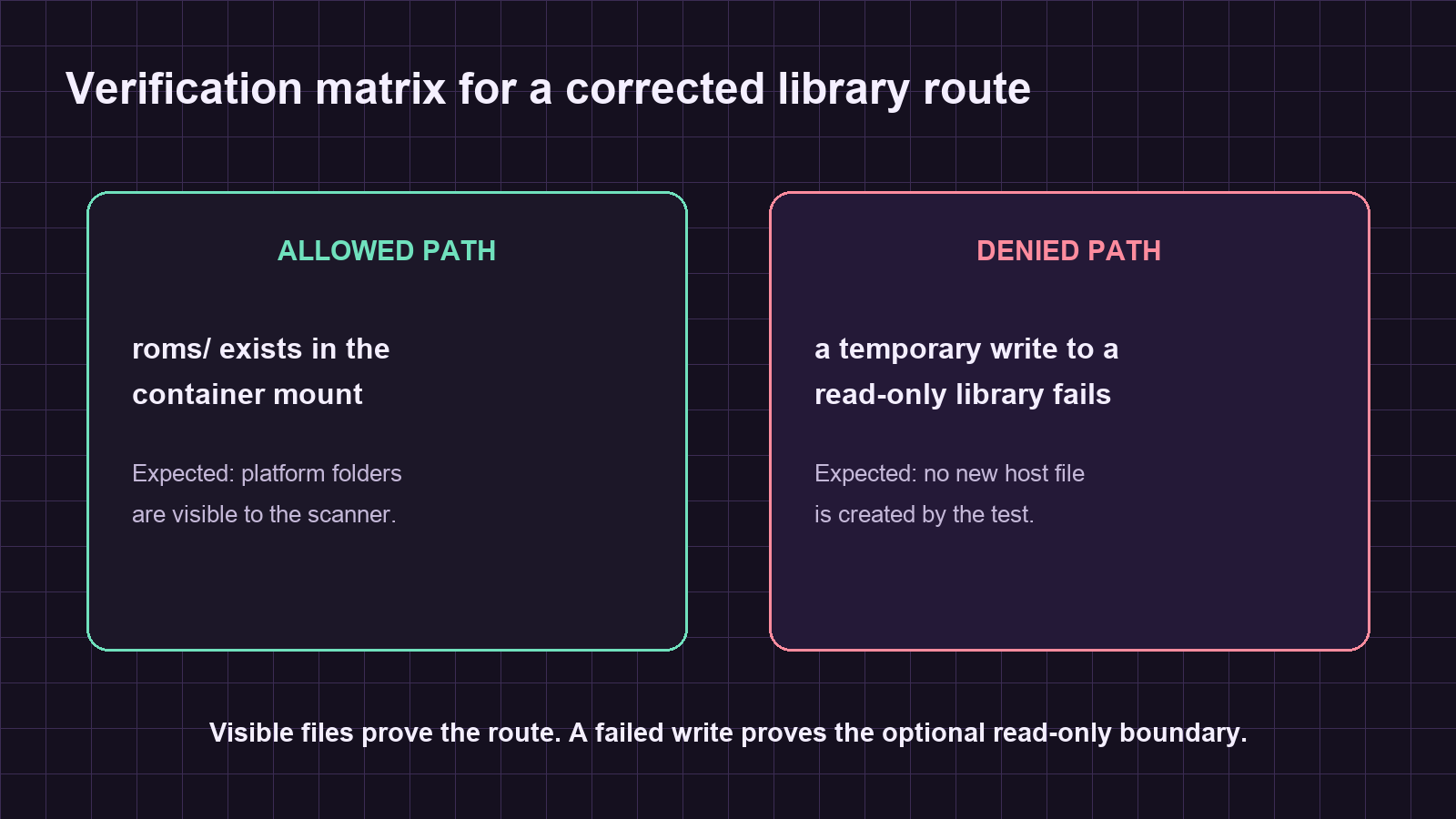
Use two checks. The first confirms that the scanner's expected tree is visible:
docker exec romm sh -lc 'test -d /romm/library/roms && test "$(find /romm/library/roms -mindepth 1 -maxdepth 1 -type d | wc -l)" -gt 0 && echo "PASS: platforms visible"'For libraries that should never be modified by the container, Docker supports a read-only bind mount. Add read_only: true to the long mount form only after confirming that the chosen RomM workflow does not need to write game files. Then test the denied write with a disposable command:
docker exec romm sh -lc 'if touch /romm/library/.romm-write-test; then rm -f /romm/library/.romm-write-test; echo "FAIL: mount is writable"; exit 1; else echo "PASS: write denied"; fi'A successful verification has platform folders visible and, when a read-only boundary is selected, a denied write. The denied result is expected; it prevents an accidental container process from changing the host library.
Troubleshooting and rollback
If docker inspect shows the correct route but the container test fails, check host-side read permissions with ls -lh /srv/games/library and inspect RomM logs:
docker logs romm 2>&1 | grep -E 'ERROR.*scan_handler'If a scan stops during one platform, run a Quick scan or isolate that platform rather than increasing scan scope first. If the fix makes the service worse, restore the previous compose.yaml from the copy made before Step 2, then run:
docker compose up -d --force-recreate romm
docker inspect romm --format '{{range .Mounts}}{{println .Source "->" .Destination}}{{end}}'
That rollback returns the prior route without modifying the game files. Keep the corrected path only after the container-view test and the Quick scan both show the expected platform folders.
Source links
Verification ledger