tutorial / Aug 20, 2026
Index an Existing Photo Archive in Immich Without Copying It
Add an existing photo archive to Immich with a read-only Docker mount, verify both indexing and denied writes, then keep a safe rollback path.
Why index instead of uploading
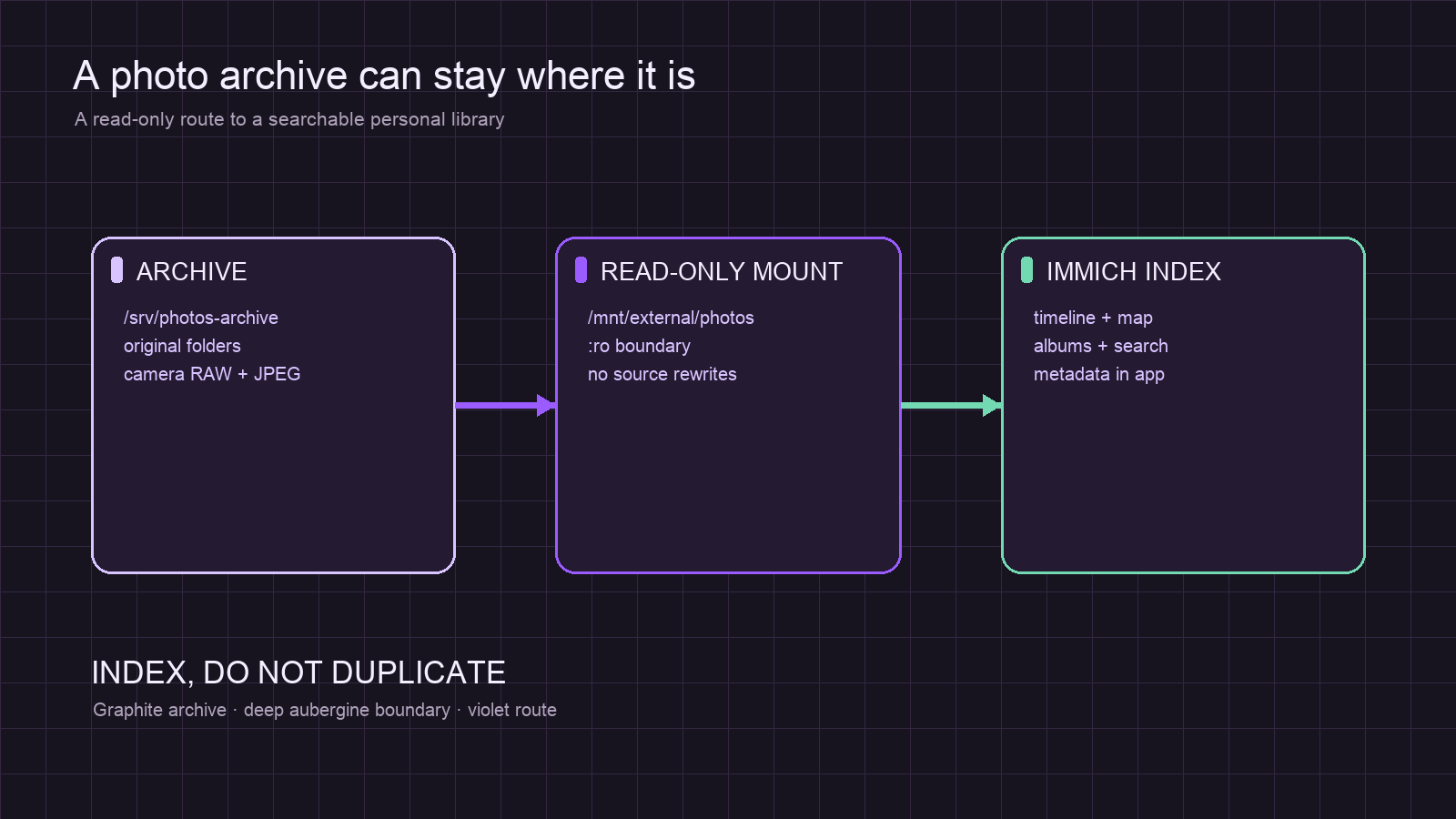
An established photo archive is often already organized around a NAS share, a camera-import folder, or a backup routine. Treating that archive as an upload queue can create a second copy, muddle ownership, and make later recovery harder. Immich External Libraries take a different route: the server scans photos and videos already on disk, then presents assets in the timeline, albums, map, and search views. The original folder structure remains the source of truth.
This is an indexing workflow, not a backup strategy or a transactional migration. Keep an independent backup or snapshot before changing anything. A read-only mount limits what the Immich container can write; it does not protect against disk loss, accidental host-side deletion, or a broken NAS mount.
Before you start
Use a working Docker Compose Immich deployment, an Immich administrator account, and permission to edit the Compose file defining immich-server. Select a small pilot folder with a known photo, record the current archive path and Compose location, and keep a LAN route to the Docker host in case the change needs to be undone.
The host path must be mounted and stable before Docker starts. For a NAS, confirm the host can read it after a reboot. Do not rely on filesystem watching for remote storage: Immich identifies that watcher as experimental and unlikely to work with network drives. Plan periodic scans and avoid symlinks that cross mount boundaries.
Step 1 — Add a read-only archive mount
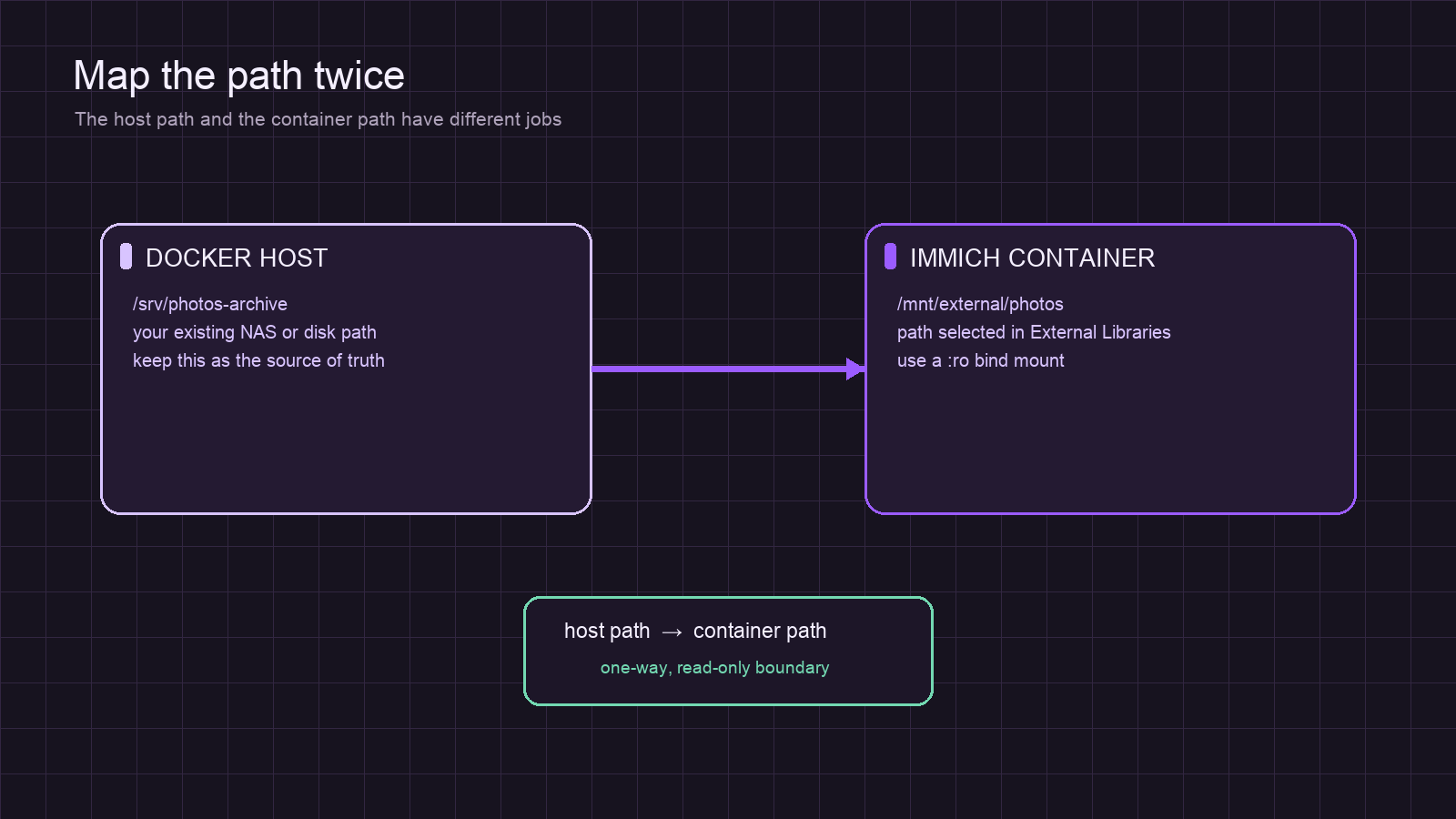
Add the existing archive as a bind mount under the immich-server service. Replace the sample host path with your existing archive; do not use this exact mapping if your Compose service or archive location differs.
services:
  immich-server:
    volumes:
      - /srv/photos-archive:/mnt/external/photos:ro
The left side is the Docker host path and the right side is what Immich sees. The :ro suffix is deliberate: a read-only External Library prevents web-UI deletion of those library images and prevents XMP sidecar writes. A mount without it is not the safe default for an archive that should remain unchanged.
- Choose the existing host archive path.
- Choose a new, descriptive container-only path.
- Add the bind mount beneath immich-server.
- Keep :ro at the end of that mapping before validation.
Step 2 — Validate the Compose change before applying it
From the directory containing the configuration, run the Compose validator. It resolves the model without starting a changed service.
docker compose config -qIf that succeeds, apply the changed service definition and check the path from inside the running container.
docker compose up -d

docker compose exec immich-server ls -la /mnt/external/photos
Expected result: the listing includes the known test folder or photo. If it is empty or reports a path error, stop. Check the host mount, the left side of the mapping, and the service name before using the Immich UI.
Step 3 — Create an External Library with the container path
In Immich, open Avatar → Administration → External Libraries → Create Library. Choose the intended owner carefully because an External Library owner cannot be changed later. Under Folders, select Add, enter /mnt/external/photos, and select Add. Use this container path, not the Docker host path.
Optional exclusions belong under Exclusion Patterns. For example, test **/Raw/** against the small pilot folder before using it on the archive. Select Scan to start indexing. A small pilot avoids turning an incorrect path or pattern into a long troubleshooting job.
Step 4 — Verify the allowed and denied paths
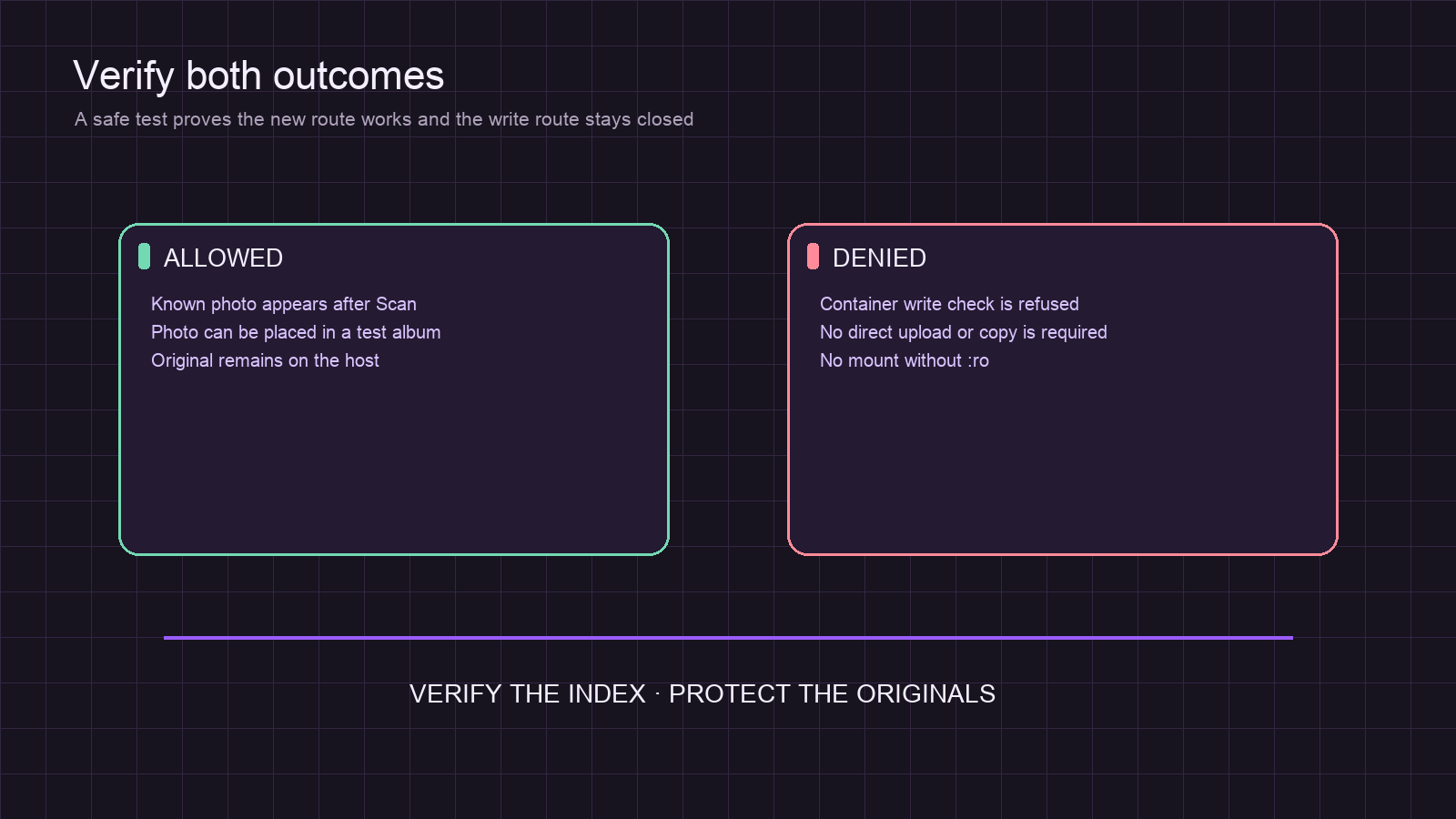
For the allowed path, find the known photo in the assigned owner’s timeline, add it to a temporary album, and confirm from the Docker host that its original file remains in the archive. Album membership is Immich metadata; it should not require reorganizing the original directory.
For the denied path, this write check should fail with a permission error because the bind mount is read-only.
docker compose exec immich-server sh -c 'touch /mnt/external/photos/.immich-write-check'If that command succeeds, remove the test file immediately from the host, inspect the mapping, and restore :ro before proceeding. A successful write is not permission to let Immich manage an archive that was intended to stay external.
Keep scans predictable and preserve context
For maintenance, use Avatar → Administration → External Libraries → Scan All Libraries to request another scan. Under Avatar → Administration → Settings → External Library, choose a suitable interval or cron schedule. Scheduled scans are the safer operational choice for a NAS because the experimental watcher may not notice remote filesystem changes.
Keep filenames and locations stable after family members begin adding descriptions or album membership. Immich stores that app-side context separately from the original image. If an external asset moves, a later scan can treat it as new and leave old metadata behind. A file removed from every import path is treated as deleted from the Immich index.
Troubleshoot a missing or stale photo
When a photo does not appear, begin at the boundary instead of repeating scans. Confirm the host path is mounted, rerun the container listing command, compare the output with the folder entered in External Libraries, and check that an exclusion did not match the test image. Use Scan All Libraries only after the path is correct. A hard reload or cleared browser cache can reveal a successfully refreshed result; do not compensate by uploading a duplicate.
Roll back the index without touching originals
First confirm from the host that the original archive is present. In Immich, open Avatar → Administration → External Libraries, select the pilot library, and delete it. This removes its asset records from Immich; it does not alter the originals. Background cleanup can continue after the library disappears.
docker compose config -q
docker compose up -d
Do not move the archive path around to simulate an undo after substantial metadata has been added. Reintroducing a moved file can create a new asset record and lose Immich-only context. The safe rollback is to validate a small pilot, remove the index if it is unsuitable, and leave the archive and its independent backup unchanged.
Sources
Verification ledger