tutorial / Aug 24, 2026
Make Jellyfin Transcoding Predictable with Intel Quick Sync in Docker
Map an Intel render device into Jellyfin, choose the right Linux acceleration backend, and prove a real transcode before relying on it.
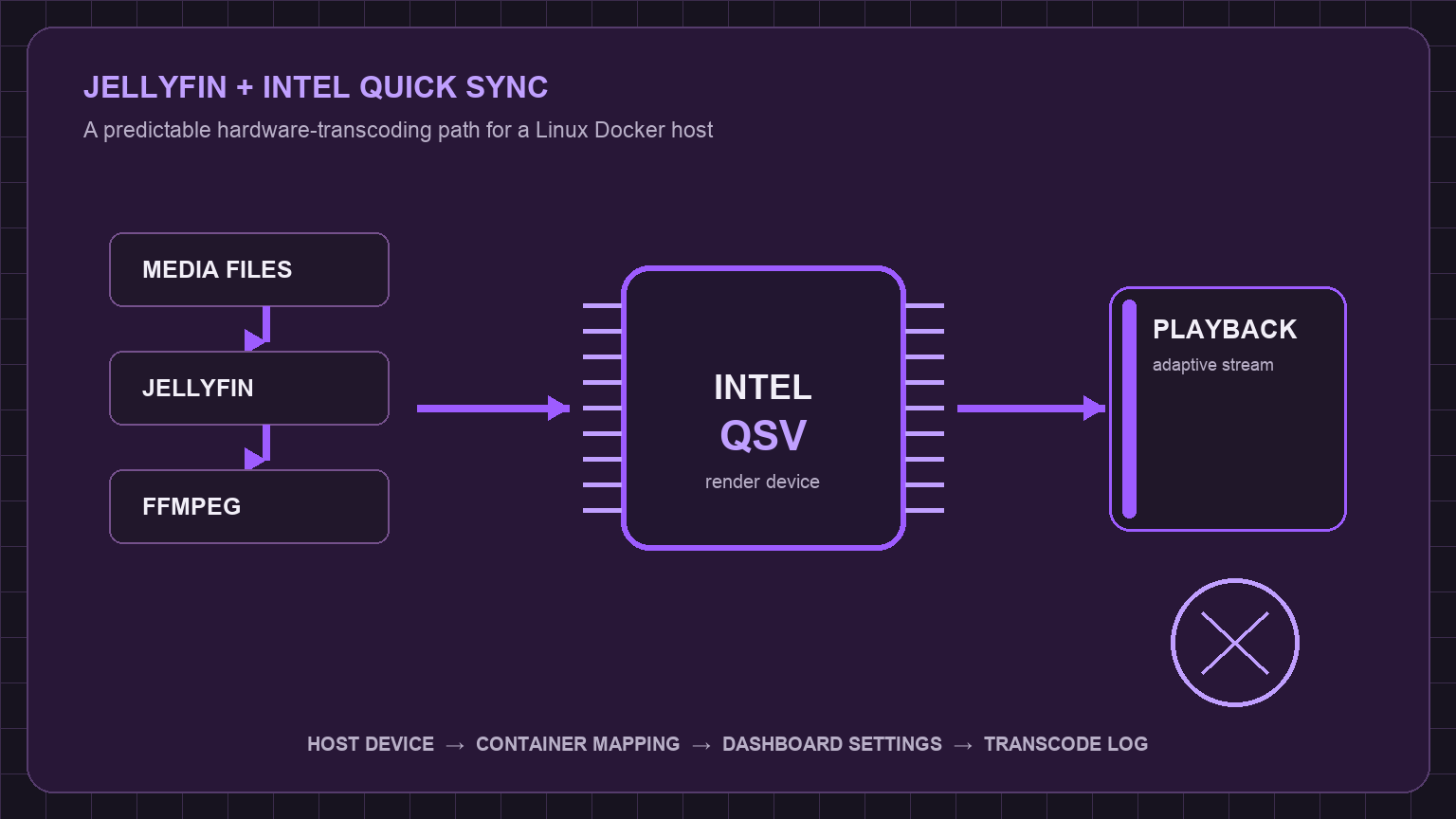
Choose the narrowest hardware path
This guide targets a Linux host running Jellyfin in Docker with an Intel integrated GPU or Intel Arc GPU. On supported mainstream Intel hardware, Jellyfin prefers Quick Sync Video (QSV) on Linux; VA-API remains the compatibility option for older Intel generations. Do not treat either path as universal: Intel processors ending in F do not include an integrated GPU, and a macOS or Windows Docker host is not a supported route for Jellyfin hardware transcoding.
The objective is simple: make one deliberately constrained playback request, then confirm that Jellyfin's transcode process names a hardware decoder or encoder. A low CPU number, a green dashboard toggle, or a Direct Play session does not establish that result.
Prerequisites and compatibility limits
Before changing a Compose file, collect these facts from the Linux host:
- Jellyfin runs in a Docker container and its configuration directory is persistent.
- The host has an Intel GPU visible to the kernel and a usable
/dev/drirender node. - The account that runs Docker can read the device, or the container receives the appropriate supplementary group.
- A test client can request a lower quality than the source; this forces a transcode when the source is not already compatible.
- The server uses the Jellyfin-supplied FFmpeg build. Substituting another FFmpeg build can leave only part of the pipeline accelerated.
Check the display controller and the render nodes first:
lspci -nn | grep -Ei "3d|display|vga"
ls -l /dev/dri
getent group render
Expect at least one renderD* entry, commonly renderD128. Do not copy that name blindly: systems with multiple GPUs can expose another render node. If /dev/dri is absent, stop here and resolve the host driver or firmware state before editing Jellyfin.
Configure Step 1: map the Intel render device
Use a device mapping rather than a broad privileged container. In the Jellyfin service of compose.yaml, map the discovered render node and add the host render-group numeric ID when the image runs as a non-root user. Replace the example paths and group ID with values from the host.
services:
  jellyfin:
    image: jellyfin/jellyfin:latest
    devices:
      - /dev/dri/renderD128:/dev/dri/renderD128
    group_add:
      - "109"
    volumes:
      - /srv/jellyfin/config:/config
      - /srv/jellyfin/cache:/cache
      - /srv/media:/media:ro
Keep media read-only unless the library workflow genuinely requires writes. The render mapping grants access to a device, not to the media tree; both permissions need independent review. If Docker uses another account or an image with a different user model, inspect that image's documentation before assuming group_add is sufficient.
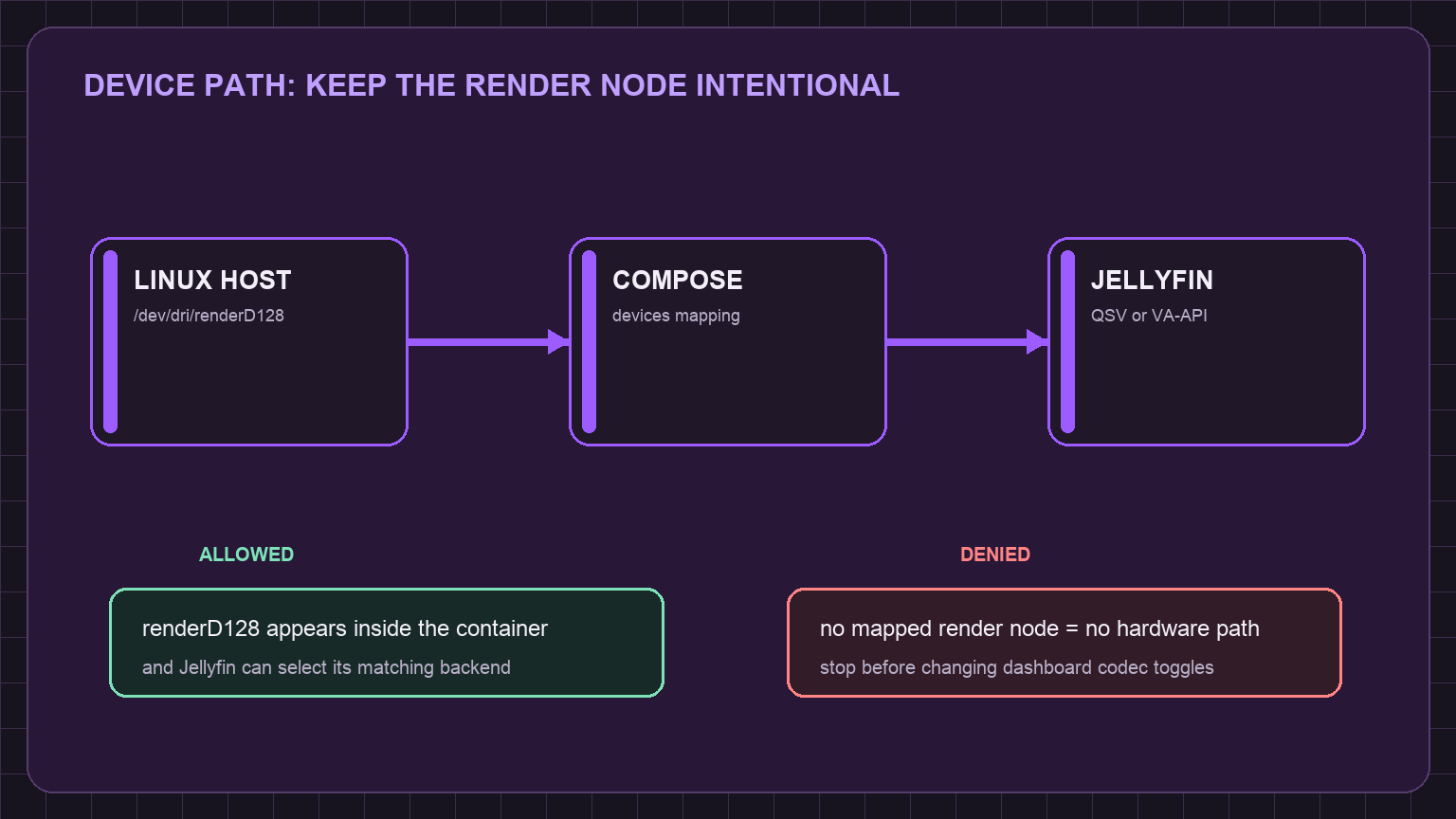
Apply only the Jellyfin service and inspect the device from inside the running container:
docker compose up -d jellyfin
docker compose exec jellyfin ls -l /dev/dri
Expected result: the mapped render node appears in the container. Denied result: No such file or directory, a permissions error, or an empty /dev/dri listing. A denied result means the container boundary is incomplete; do not compensate by enabling every codec in the Jellyfin dashboard.
Step 2: select the matching Jellyfin backend
Open Dashboard → Playback → Transcoding. For a supported modern Intel GPU on Linux, choose Intel Quick Sync (QSV). Use VA-API when the hardware or operating system requires that compatibility route. Enter the device path that matches the container mapping, normally /dev/dri/renderD128, then select only decode and encode formats the Intel generation supports.
Leave advanced tone-mapping and low-power encoding disabled until ordinary H.264 or HEVC playback has been verified. Those options add another dependency layer and can obscure a basic device-access failure. Older Intel platforms may have changing QSV support as legacy runtimes age; the Intel-specific Jellyfin guide is the authority for that boundary.
Step 3: force one real transcode
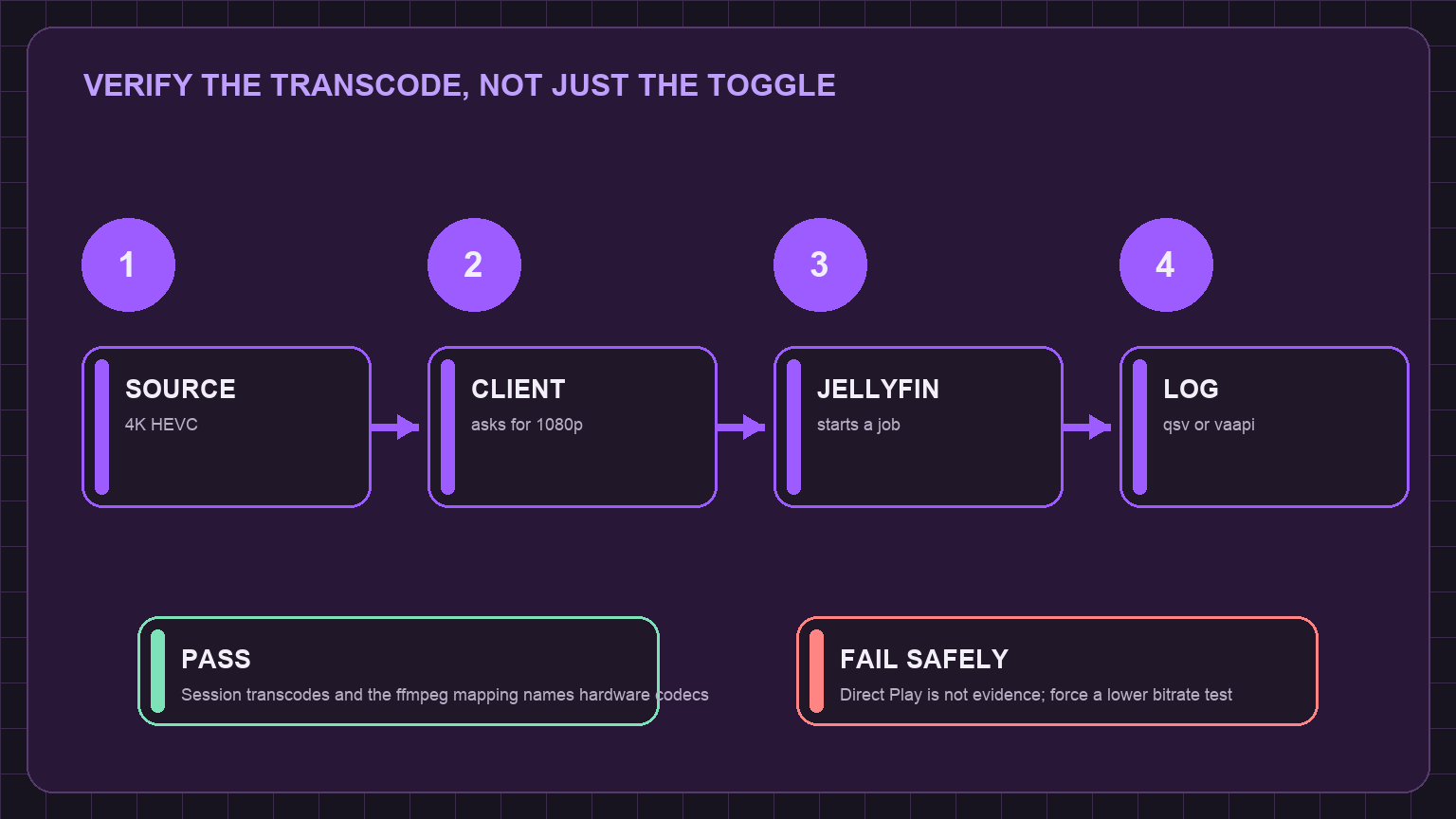
Direct Play avoids the transcoder, so it cannot validate hardware acceleration. Choose a test title that is larger or uses a codec the chosen client cannot play directly. From the client playback quality menu, select a lower bitrate or resolution such as 1080p 8 Mbps. Then open Dashboard → Activity and Dashboard → Logs while the session is active.
docker compose exec jellyfin sh -lc 'ls -t /config/log/ffmpeg-transcode-*.txt 2>/dev/null | head -n 1'The filename varies by image and server version. If that path returns nothing, use Dashboard → Logs to open the active transcode log instead of guessing a host filesystem path. The useful evidence is the stream-mapping line: a QSV mapping typically includes a hardware codec suffix such as h264_qsv; a VA-API route uses the corresponding VA-API hardware path.
Step 4: verify the allowed and denied paths
Run two short checks, not one optimistic test.
- Allowed path: start the constrained playback request, confirm that Jellyfin reports an active transcoding session, and inspect the log for the expected hardware mapping.
- Denied path: temporarily comment out the
devicesmapping in a copied Compose file or stop the test before it reaches the dashboard. Confirm that the container no longer sees/dev/dri/renderD128; restore the original file without recreating the service from the altered copy. - Permission check: keep the mapping present but use the normal container user. A permissions error proves that device visibility and device access are separate conditions.
- Fallback check: play H.264 10-bit content only if it exists in the library. Jellyfin documents that this format generally falls back to software decoding on Intel, NVIDIA, and AMD hardware, so that fallback is expected rather than a reason to widen container permissions.
Troubleshooting and safe rollback
If the render node is visible but QSV fails, first compare the selected backend, device path, Intel generation, and installed Jellyfin FFmpeg build with the current Jellyfin Intel guide. If a playback test fails after enabling hardware acceleration, switch the dashboard backend back to its previous value, save, and retry a known-good Direct Play title.
To roll back the container change, remove only the devices and group_add entries added for the render node, then recreate Jellyfin:
docker compose up -d --force-recreate jellyfin
docker compose exec jellyfin ls -l /dev/dri
The final command should no longer show the mapped device. That is an intentional denied state, not a broken deployment. Keep the persistent /config, /cache, and media mounts unchanged during rollback so library state and watched history remain intact. For NVIDIA hardware, use the vendor-specific Jellyfin and Docker GPU guidance instead; Intel render-node mappings do not configure NVIDIA runtime access.
Keep the evidence with the change
Record the GPU model, render-node path, chosen backend, successful test title, and one relevant log line alongside the Compose change. That small record makes later driver, kernel, or Jellyfin upgrades easier to diagnose. A reliable media server does not need every playback format accelerated; it needs a known supported path, a bounded fallback, and a test that distinguishes the two.
Verification ledger