tutorial / Sep 5, 2026
Mount a Jellyfin Library Read-Only in Docker
Give Jellyfin read access to the finished media library without allowing the container to alter the host files.
What a read-only library changes
A media server needs to read the finished library, but it does not need blanket permission to rename, delete, or create files there. A read-only bind mount gives the Jellyfin container a visible path while preventing writes through that mount. It is a small boundary with a useful operational result: the application can scan and stream the files it is meant to serve, while the host library stays owned by the import and storage workflow.
This is not a substitute for backups, host permissions, or trusted images. It is one layer that narrows what a compromised process or a mistaken administrative action can change through the container. Keep Jellyfin's configuration and cache writable; only the finished media paths are the target for this change.
Prerequisites and compatibility
Use a Linux Docker host with a working Jellyfin Compose service and a media directory that already exists on the Docker daemon host. Docker bind mounts point at the daemon host, not at a remote Docker client. The examples use /srv/media on the host and /media in the container; replace only the host path with the real final-library root.
Have permission to edit the Compose file and to run docker compose. If Jellyfin runs under a non-default UID and GID, that identity must still be able to traverse the host folders and read the media files. This guide does not make files readable when ordinary Unix permissions deny access. Do not put incomplete downloads under this mount: use a separate staging area and expose only files that are ready for the library.
read_only: true belongs on the media bind mount, not on the whole service. Jellyfin still needs its normal writable /config and /cache paths. A containerized Jellyfin installation on macOS or Windows is not a supported route in Jellyfin's own container guidance, so use this pattern on Linux rather than treating Docker Desktop behavior as a compatibility guarantee.
Inspect the current media mount
Before changing anything, identify the Compose project directory and confirm that the host path exists. The following commands do not alter the service:
- From the directory containing the Compose file, render the effective configuration.
docker compose config- Confirm the intended final-library directory exists on the Docker host.
sudo test -d /srv/media && sudo find /srv/media -maxdepth 1 -type d -print- Inspect the running container's mounts. Replace
jellyfinif the service has a different name.
docker compose exec jellyfin sh -lc 'mount | grep " /media " || true'Do not reuse a path that contains Jellyfin configuration, cache, a download-client staging folder, or a database. A bind mount hides any image files that were already at its target path, so /media should be reserved for mounted library content.
Configure the Compose mount
Add or replace the finished-library entry under the Jellyfin service's volumes: list. Long syntax makes the source, target, and access mode easy to review:
- Add this block, keeping existing
/configand/cacheentries unchanged.
services:
  jellyfin:
    volumes:
      - type: bind
        source: /srv/media
        target: /media
read_only: true- Validate the rendered YAML before recreating the service.
docker compose config --quiet- Apply the change to Jellyfin only.
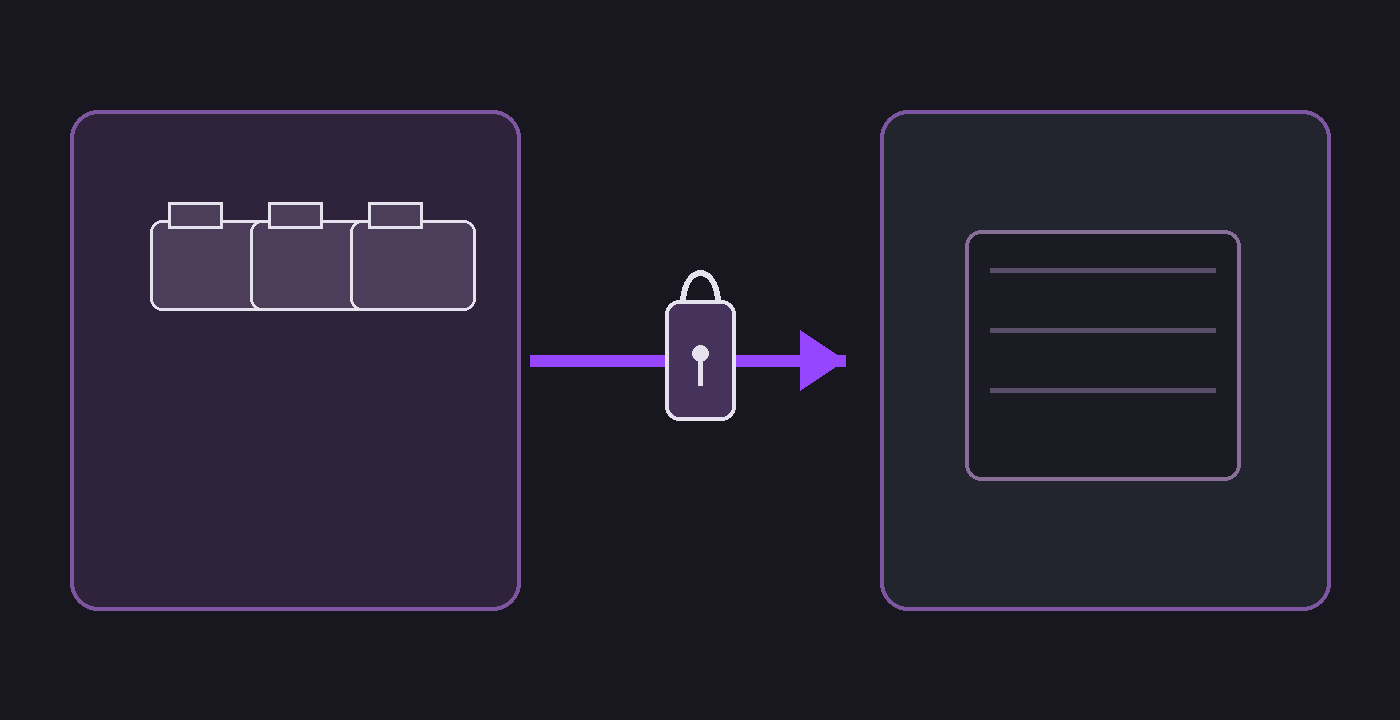
docker compose up -d jellyfinThe Compose form above matches Jellyfin's container documentation: configuration and cache can be separate writable paths, while a media bind can be declared read-only. Use multiple bind entries when the library intentionally spans distinct storage roots. Do not mount a broad host directory such as / merely to make folder browsing convenient.
Add the library path in Jellyfin
After the container is healthy, sign in with an administrator account. Open Admin > Dashboard > Server > Libraries, choose Add Media Library, select the matching content type, and add /media or a more specific directory such as /media/movies. Save the library and allow the scan to finish.
Use the dedicated Movies, Shows, or Music type when it fits the files. Jellyfin documents those as the common library types with the best client support. A single library can contain several paths, but each container path must first be explicitly mounted; a host folder that is absent from the container cannot be selected meaningfully in the library picker.
Verify both the allowed and denied paths
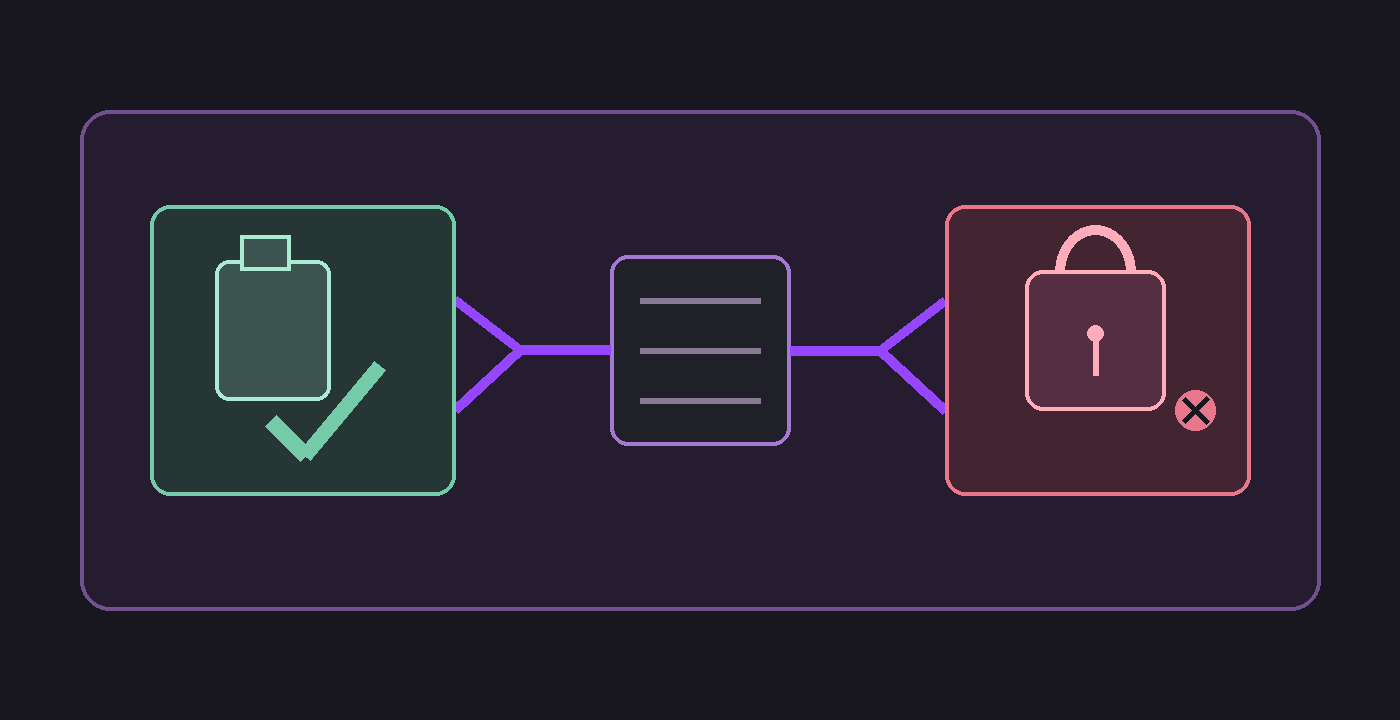
A successful deployment has two results. First, Jellyfin can list and play an existing file from the selected library. Second, a shell inside the same service cannot create a file under /media. Test both, rather than assuming that a Compose key took effect.
- Check the mount mode that Docker recorded for the running container.
docker inspect "$(docker compose ps -q jellyfin)" --format '{{range .Mounts}}{{if eq .Destination "/media"}}{{.Type}} {{.Source}} -> {{.Destination}} RW={{.RW}}{{end}}{{end}}'The expected result includes bind, the intended source directory, /media, and RW=false. Then test an allowed read and a denied write:
docker compose exec jellyfin sh -lc 'test -r /media && echo "read test passed"'
docker compose exec jellyfin sh -lc 'touch /media/.write-test'
The first command should print read test passed. The second must fail with a read-only filesystem or permission error; remove no files as part of this check. In the Jellyfin interface, start a known item from the new library and confirm playback begins. A visible library with an unreadable file points to host ownership or mode bits, not to a reason to remove read_only: true.
Troubleshooting and rollback
If the container starts but /media is empty, run docker compose config again and check that the host source is an absolute path on the Docker host. If the service will not start, look for a missing source directory; Docker's explicit bind-mount syntax fails when its source does not exist. Create or correct the intended host directory before retrying rather than pointing Jellyfin at an unrelated parent path.
If scans fail with access errors, inspect the host directory ownership and execute permissions for the account used by Jellyfin. Grant the minimum read and traverse access required on the host; do not solve a read problem by making the media mount writable. If the library path was entered incorrectly, change it in Admin > Dashboard > Server > Libraries after fixing the container mount.
To roll back, remove the read-only media entry or restore the prior mount definition from the Compose file, run docker compose config --quiet, and then run docker compose up -d jellyfin. Keep the library record only if its container path remains valid; otherwise remove that path from the library before the next scan. This rollback changes the container mapping, not the media files themselves.
Verification ledger