security / Aug 21, 2026
Move Docker Passwords Out of Environment Variables with Compose Secrets
Move one Docker Compose password into a file-backed secret, limit service access, test allowed and denied paths, and keep a safe rollback.
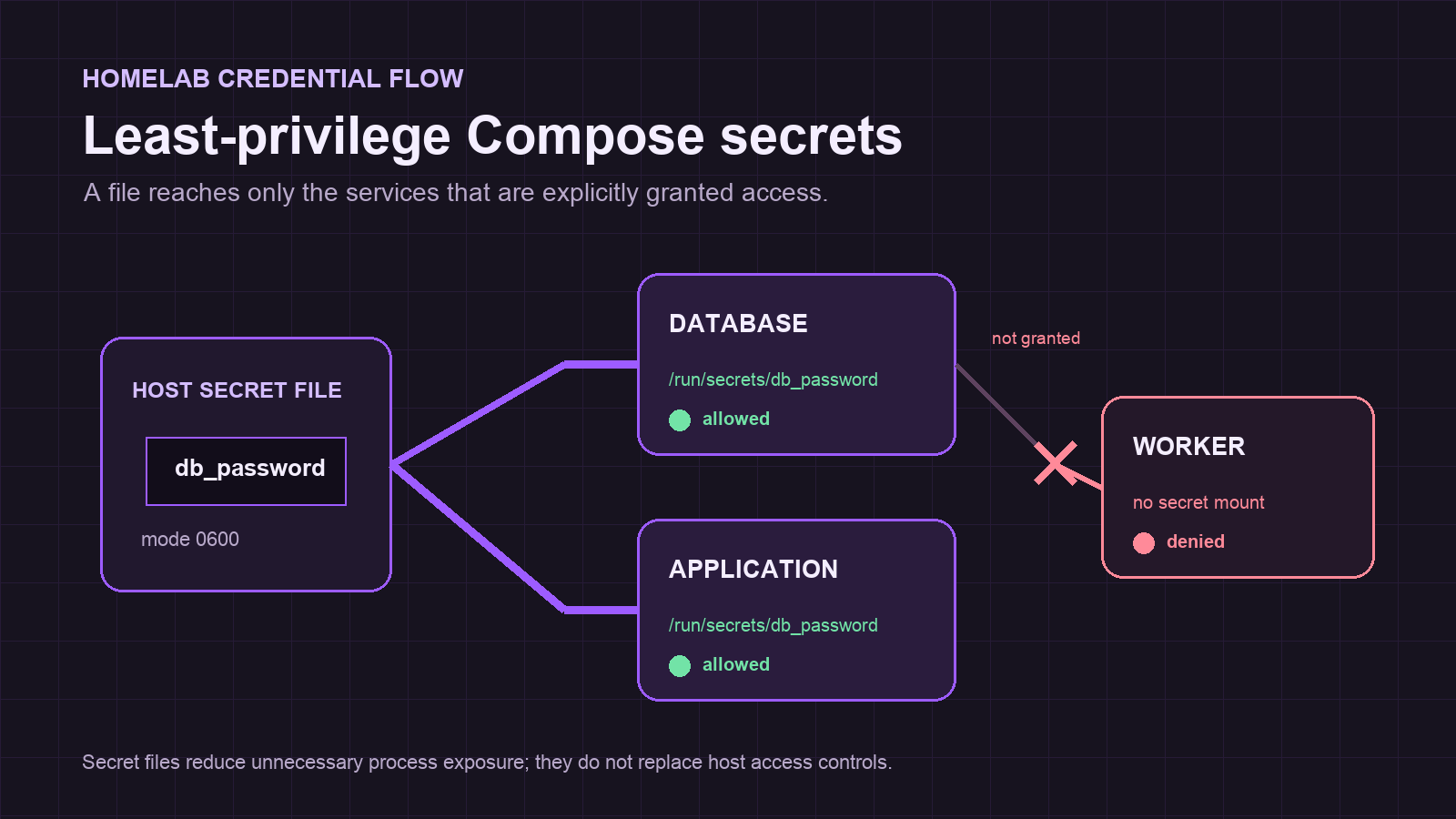
Outcome: a smaller credential exposure path
A Docker Compose stack often begins with a password in .env and an environment: entry. That pattern is convenient, but it gives every process that receives the variable a chance to inherit it, and it can surface in debugging output. A file-backed Compose secret narrows delivery: Docker mounts a secret only into services that explicitly request it.
This guide migrates one application database password from a plaintext environment variable to a Compose secret. The result is not encrypted secret storage or a substitute for host administration controls. It is a practical least-privilege boundary inside a Linux-container Compose project: the database and application get the file, while an unrelated worker does not.
Prerequisites and compatibility limits
Before changing a running homelab stack, collect these prerequisites:
- Docker Engine or Docker Desktop using Docker Compose v2, plus permission to run docker compose for the target project.
- Linux containers. Docker documents Compose secrets as a Linux-container feature because local Compose mounts each secret as a file.
- An image or application that documents a file-based setting such as MYSQL_PASSWORD_FILE or another exact *_FILE variable. Compose cannot teach an image that accepts only a plaintext variable to read a file.
- A short maintenance window and a harmless read-only application action that can confirm database access afterward.
- A protected, untracked local directory for secret files. A host administrator or Docker administrator remains highly privileged.
Do not put a real password in Compose YAML, screenshots, shell history, logs, or a support paste. File-backed Compose secrets improve process exposure; they do not encrypt the host file at rest.
Step 1: capture a rollback point and inspect image support
First, identify the current password variable and check the image documentation for its exact file-variable equivalent. For a MySQL example, Docker documents MYSQL_PASSWORD_FILE; do not guess a generic name such as PASSWORD_FILE.
- Render and validate the current Compose model before editing it.
docker compose config > compose.before.yaml
docker compose config -q- Save the current environment file outside version control with restrictive host permissions.
cp .env .env.before-secrets
chmod 0600 .env.before-secrets- Record affected service names such as db and app, and confirm the current stack is healthy.
docker compose ps
docker compose logs --tail=50 db app
Stop here if the vendor documentation does not offer a supported file input. An undocumented entrypoint workaround may break during an image update and turns a reversible security change into a fragile custom build.
Step 2: create a protected local secret file
Create a dedicated file rather than pasting the password into the Compose file. The umask prevents a newly created file from receiving broad permissions.
- Create a local directory and enter the password without echoing it to the terminal.
install -d -m 0700 secrets
umask 077
read -rsp 'Database password: ' DB_PASSWORD; printf '\n'
printf '%s' "$DB_PASSWORD" > secrets/db_password
unset DB_PASSWORD
chmod 0600 secrets/db_password- Ensure secrets/ and .env.before-secrets are excluded from Git before any commit. Git ignore rules prevent accidental staging, not host access.
- Add the top-level Compose declaration without placing the value in YAML.
secrets:
  db_password:
    file: ./secrets/db_password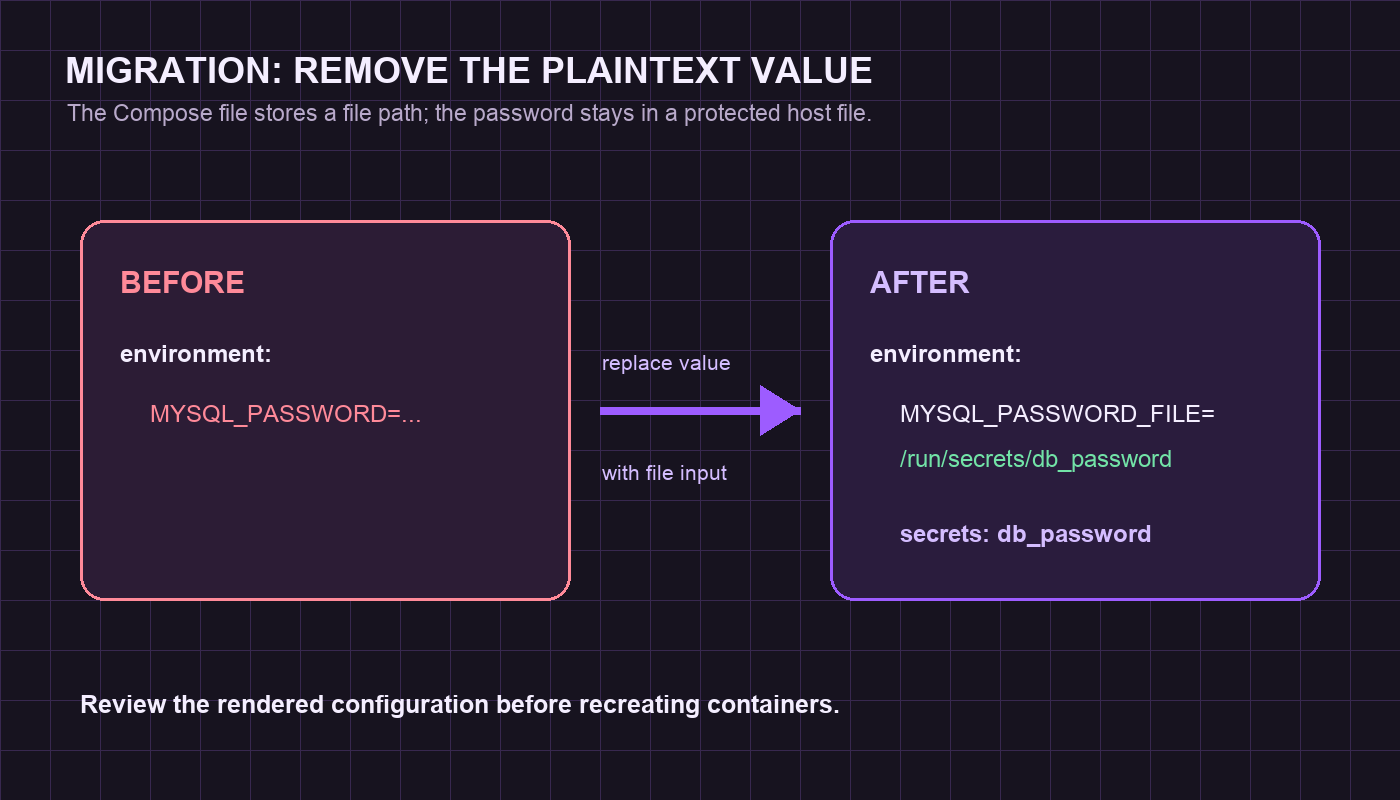
Step 3: grant the secret to only the services that need it
A top-level declaration does not automatically mount a secret everywhere. Add a service-level secrets: entry only where the password is necessary, and use the image's documented file variable.
- Replace the database password value with a file path and grant the secret to the database service.
services:
  db:
    environment:
      MYSQL_PASSWORD_FILE: /run/secrets/db_password
    secrets:
- db_password- Configure the application with its vendor-documented file setting and the same explicit grant.
  app:
    environment:
      APP_DATABASE_PASSWORD_FILE: /run/secrets/db_password
    secrets:
- db_password- Leave an unrelated service out of the grant list.
  worker:
    image: example/worker:stable
    # No db_password entry here.
Keep a database root password separate from an application-scoped database password. A worker that does not connect to the database has no operational reason to receive either file.
Step 4: review the effective model and recreate only changed services
Compose can render a resolved model before containers restart. Compare that model with the rollback copy rather than relying on visual YAML inspection.
- Render the updated model, review the difference, and validate syntax.
docker compose config > compose.after.yaml
diff -u compose.before.yaml compose.after.yaml
docker compose config -q
The intended difference removes the plaintext password variable, adds a *_FILE path, grants the secret to selected services, and defines the top-level secret. Stop if unrelated image tags, mounts, users, ports, or networks changed.
- Recreate only the services whose configuration changed.
docker compose up -d --no-deps db app
docker compose ps
Docker documents that docker compose up recreates services when configuration changes while preserving mounted volumes. That behavior is helpful for a narrow migration, but it does not repair a wrong application-specific variable name.
Verification: test an allowed path and a denied path
Successful startup is necessary but insufficient. Test the assigned service without displaying the password, then test that an unassigned service cannot see the file.
docker compose exec db sh -lc 'test -r /run/secrets/db_password && echo "db can read assigned secret"'
docker compose exec worker sh -lc 'test ! -e /run/secrets/db_password && echo "worker has no db secret"'
docker compose logs --tail=100 db app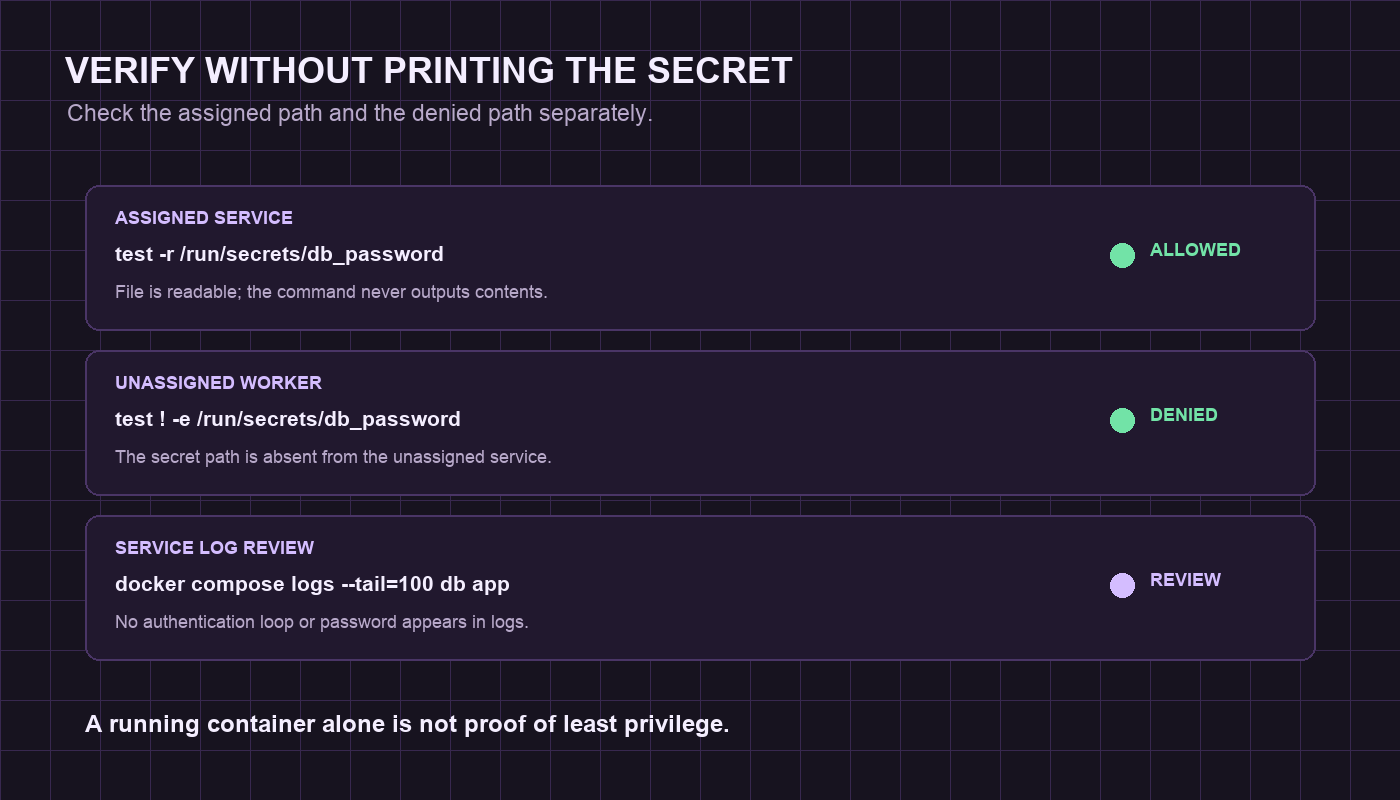
The allowed check should print only the confirmation text. The denied check should also print its confirmation text because the file is absent from worker. Then use one harmless read-only application workflow to confirm database authentication, such as loading a status page or listing an existing item. Review logs for startup loops, authentication failures, and accidental secret output.
Troubleshooting and rollback
If the application cannot authenticate, do not rotate or reset the database password as the first reaction. Restore the known-good configuration first; changing both delivery and the credential makes diagnosis harder.
- Restore the saved environment file and the previous supported password entry in the Compose file.
- Remove the new *_FILE variable and the service-level secret grants for the affected services.
- Validate the restored model, then recreate only the affected services.
cp .env.before-secrets .env
docker compose config -q
docker compose up -d --no-deps db app
docker compose ps- Confirm the application is healthy before deleting secrets/db_password. Keep the file until recovery is complete, then plan a deliberate credential rotation if the value may have been exposed earlier.
For Docker Swarm deployments, do not reuse an environment-sourced secret pattern: Docker documents different support for docker stack deploy. Use file or external secret sources that match the target platform's documented model.
Verification ledger