security / Aug 16, 2026
Run a Private Ollama API with Docker and Prove It Is Not Public
Deploy a pinned Ollama container with host-only and container-only access, then prove that LAN and internet paths stay closed.
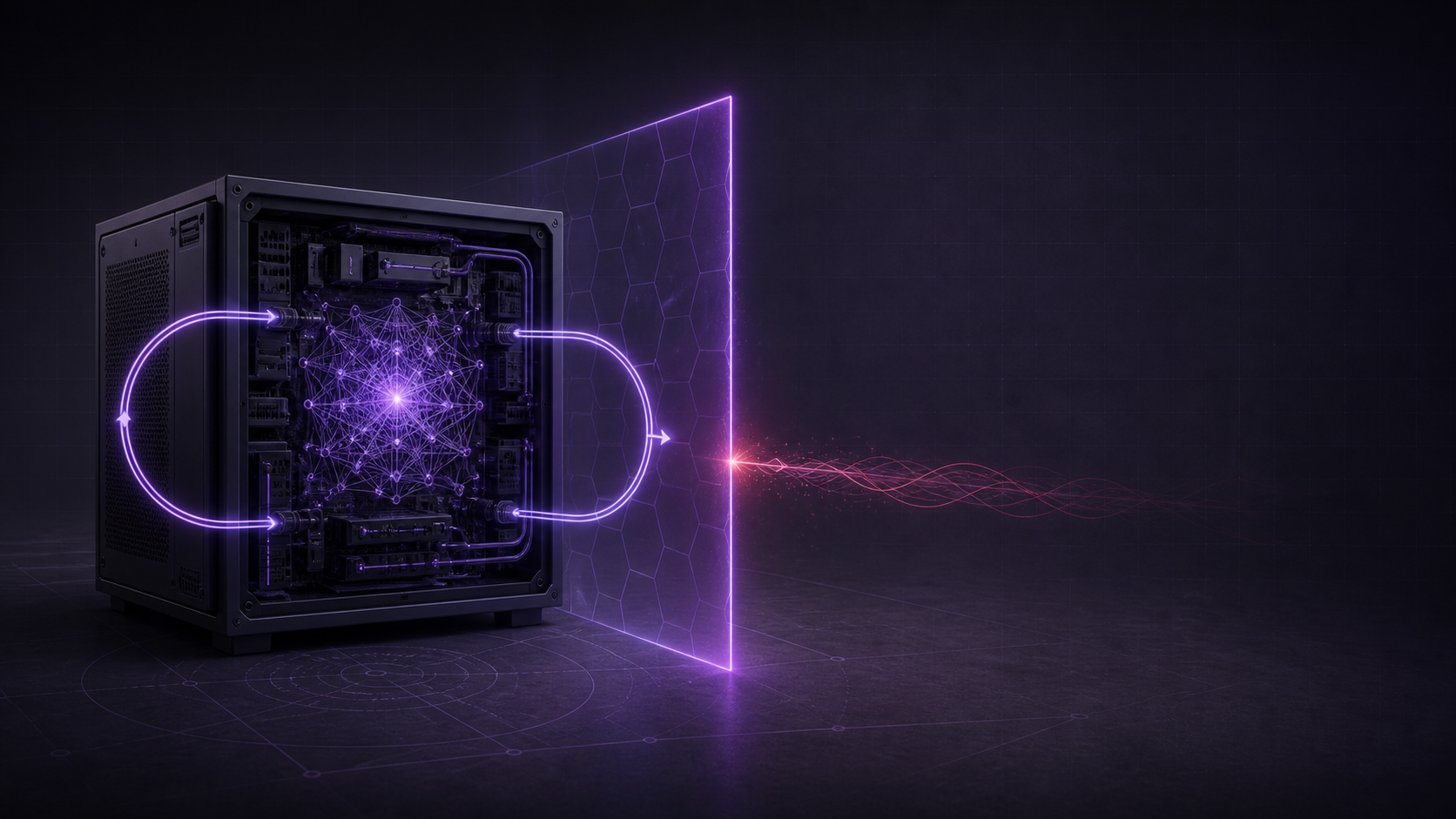
Why this API needs a network boundary
A local large language model can serve useful homelab automations without sending each prompt to a hosted model. The network design still matters. Ollama documents that its local API needs no authentication, so any client that can reach the endpoint can make requests with the permissions and models available to that service.
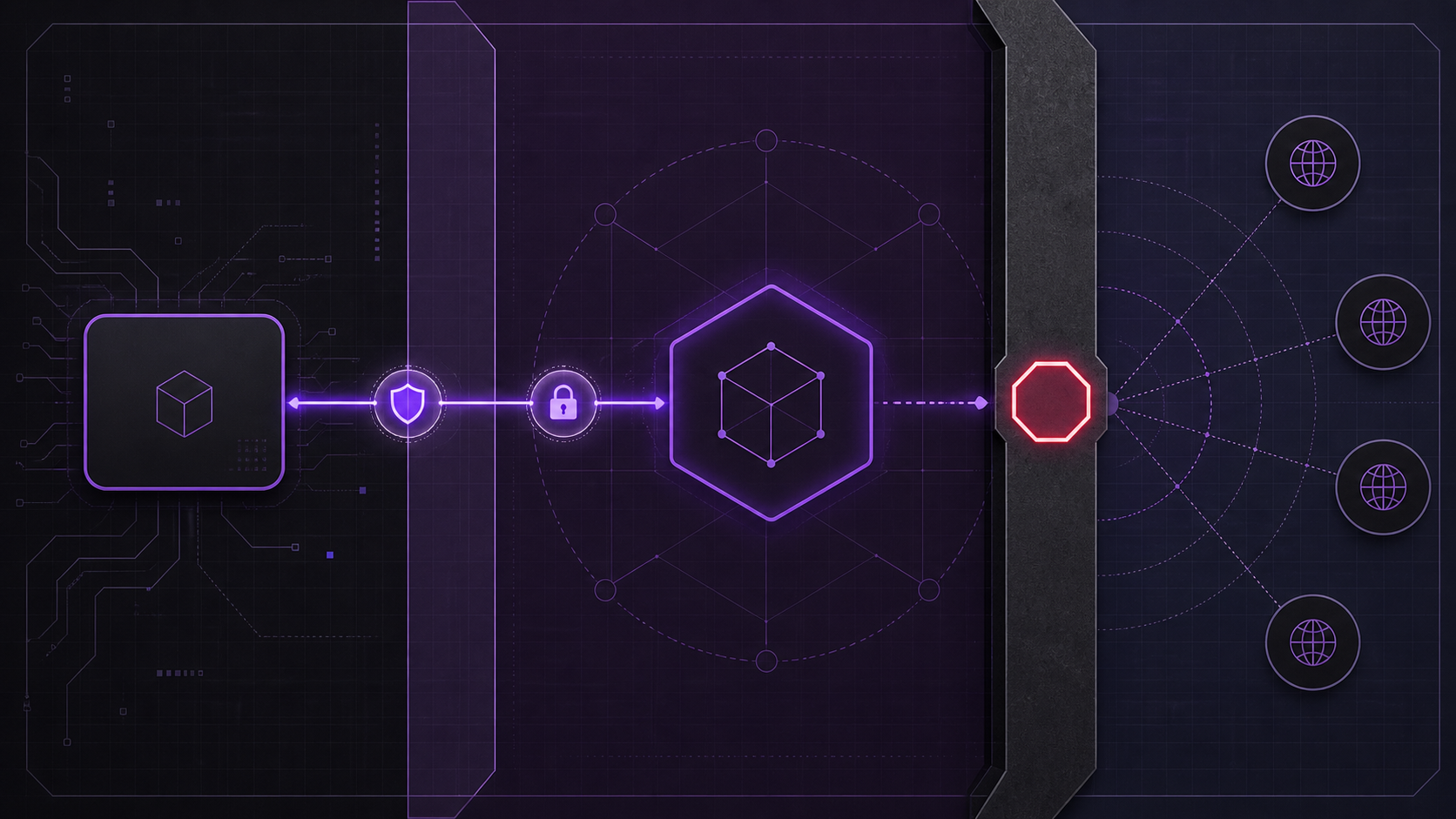
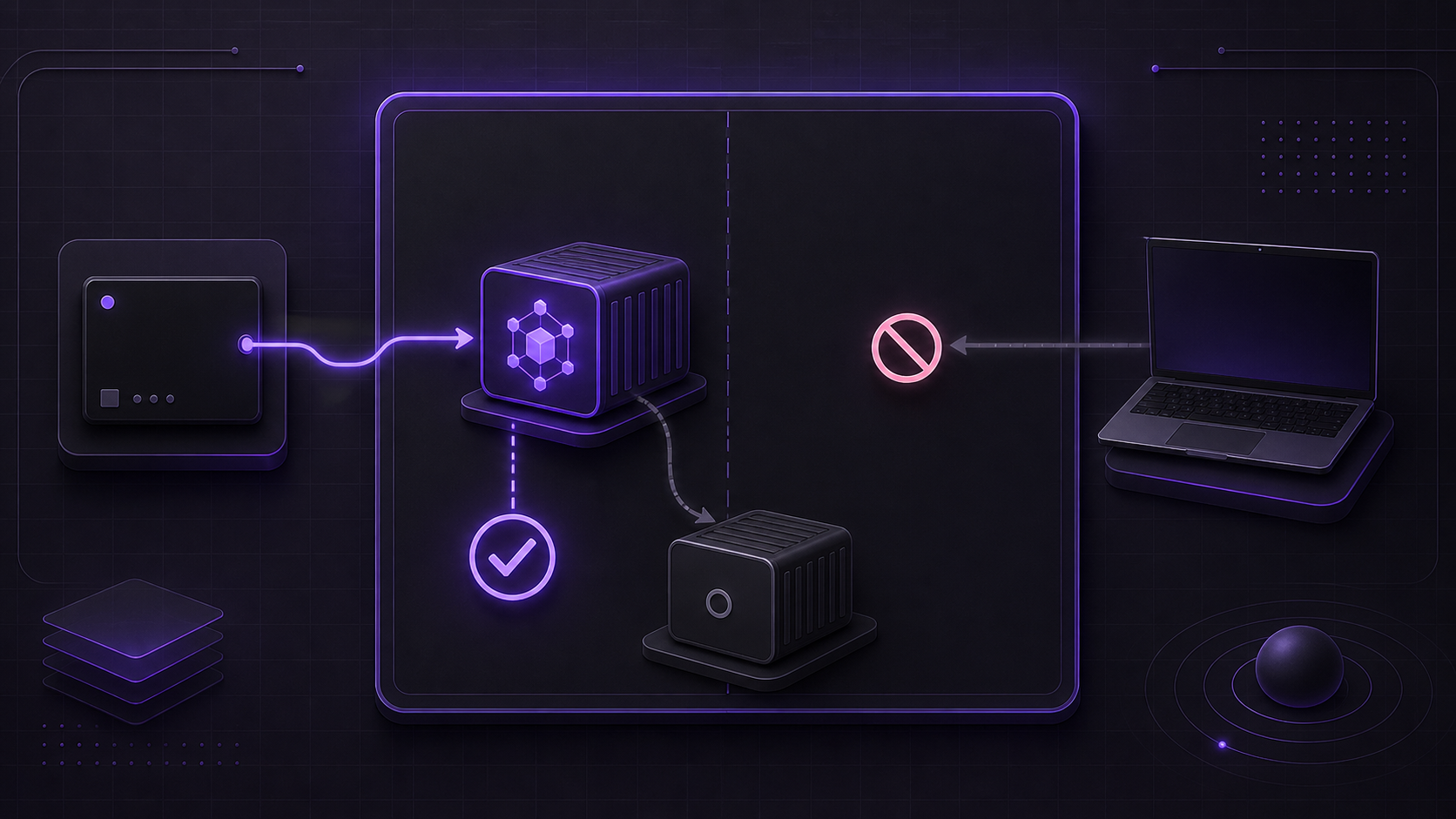
The unsafe shortcut is an unqualified Docker port mapping such as 11434:11434. Docker explains that published ports can become reachable beyond the host. This guide binds the host side to IPv4 loopback instead. The Docker host can call the API, selected containers can use an isolated bridge network, and other LAN clients should receive no HTTP response.
This is an inbound boundary, not a fully air-gapped design. Ollama still needs outbound access when it pulls images or models. Do not add a router forward, public reverse proxy, tunnel, or host networking to this deployment.
Prerequisites and compatibility limits
Use a Linux home server with Docker Engine 28.0.0 or newer and Docker Compose. Check the server version, not only the client version:
docker version --format 'Docker Server {{.Server.Version}}'
docker compose version
Docker reports a historical same-L2-network exception for localhost-published ports on engines older than 28.0.0. Upgrade an older engine before relying on this pattern. Docker Desktop can use the same Compose port mapping, but host firewall details differ. Ollama also states that Docker Desktop on macOS does not provide the GPU passthrough needed for Ollama GPU acceleration.
The operator needs permission to control the Docker daemon. Treat that permission as administrative access. Also reserve TCP port 11434, allow enough disk for the image and selected models, and confirm that no router, Universal Plug and Play rule, proxy, or tunnel already targets that port.
This tutorial uses the current pinned image ollama/ollama:0.32.13. Review the upstream release and model compatibility before changing the pin. A deliberate update is safer than silently following a moving tag on an unattended home server.
Create the private Compose deployment
Create a new empty directory for this deployment. Save the following file as compose.yaml:
name: private-ollama

services:
  ollama:
    image: ollama/ollama:0.32.13
    restart: unless-stopped
    environment:
      OLLAMA_NO_CLOUD: "1"
    ports:
      - "127.0.0.1:11434:11434"
    volumes:
      - ollama-data:/root/.ollama
    networks:
      - ollama-private

  api-check:
    image: curlimages/curl:8.16.0
    profiles: ["test"]
    depends_on:
      - ollama
    command: ["-fsS", "http://ollama:11434/api/tags"]
    networks:
      - ollama-private

networks:
  ollama-private:
    driver: bridge

volumes:
  ollama-data:
The named volume preserves models under Ollama's documented /root/.ollama container path. The explicit 127.0.0.1 address publishes the API only on IPv4 loopback. The test client joins the private bridge only when its profile runs. Compose gives services DNS discovery by service name on a shared network, so that client can use ollama:11434 without a LAN route.
OLLAMA_NO_CLOUD=1 disables Ollama cloud features. It does not replace the loopback bind or a denied-path test. Never change the mapping to bare 11434:11434, 0.0.0.0:11434:11434, or network_mode: host for this private design.
Validate and start the service
Run these steps from the directory that contains compose.yaml:
- Validate the rendered Compose model with
docker compose config --quiet. Stop if it reports an error. - Pull the two pinned images with
docker compose pull. Review any registry or disk-space failure before continuing. - Start only Ollama with
docker compose up -d ollama. The profile test container stays stopped. - Inspect the result with
docker compose psanddocker compose logs --tail=100 ollama.
The port column must show 127.0.0.1:11434->11434/tcp. It must not show 0.0.0.0:11434 or :::11434. The service can take time to initialize on slower storage, but repeated exits require diagnosis before any model pull.
Ollama's container listens on all interfaces inside its network namespace. That internal listener allows approved peer containers to connect. The host-side Docker mapping remains the control that prevents a routable host listener.
Verify both allowed paths
First, test the host loopback route on the Docker server:
curl -fsS http://127.0.0.1:11434/api/tags
docker compose port ollama 11434
The curl command should exit with code 0 and return JSON containing a models array. A new installation can return an empty array. The second command should resolve to 127.0.0.1:11434.
Next, test the approved container route:
docker compose --profile test run --rm api-checkThis command should also exit with code 0 and return the tags response. The client uses http://ollama:11434, not localhost. Inside a client container, localhost refers to that client container itself. A separate application should join ollama-private only when it is intentionally allowed to use the local AI API.
An optional inference check can follow after the network tests pass:
docker compose exec ollama ollama pull llama3.2
curl -fsS http://127.0.0.1:11434/api/generate \
  -H 'Content-Type: application/json' \
  -d '{"model":"llama3.2","prompt":"Reply with exactly: private API works","stream":false}'
Expect one JSON response with done set to true. Model size, latency, and generated punctuation vary by hardware and model build.
Prove the remote paths are denied
Run the next test from a different physical machine on the same LAN. Replace the documentation address with the Docker host's real LAN address:
SERVER_LAN_IP=192.0.2.10
code="$(curl -sS --connect-timeout 3 \
  -o /dev/null -w '%{http_code}' \
  "http://${SERVER_LAN_IP}:11434/api/tags")"
rc=$?
printf 'curl_exit=%s http=%s\n' "$rc" "$code"
test "$rc" -ne 0
A refused connection normally gives curl exit 7 and HTTP 000. A firewall drop normally gives exit 28 and HTTP 000. Any HTTP status, including 4xx or 5xx, means that a network path reached a web service. Treat that result as a failed privacy gate.
If the home server has public DNS or a public IP, repeat the same check from outside the LAN. Use the public address only as the destination. Do not create a port forward for the test. The expected result remains no HTTP response. Also inspect the router for an existing forward or Universal Plug and Play mapping.
Troubleshoot without weakening the boundary
If Docker reports socket permission errors, use the host's approved sudo or rootless Docker process. Do not grant broad Docker access only to make one command pass.
If port 11434 is already in use, identify the owner:
docker ps --format 'table {{.Names}}\t{{.Ports}}'
ss -ltnp '( sport = :11434 )'
Stop the conflicting service, or change only the host side to 127.0.0.1:11435:11434 and update host tests. Keep the container port at 11434.
If the host test works but the peer-container test fails, confirm that both services join ollama-private. Use the service name ollama. Then inspect docker compose logs --tail=200 ollama for startup errors.
If a LAN client receives JSON, inspect docker compose config and docker compose ps. Remove broad binds, host networking, reverse proxies, tunnels, and router forwards. Upgrade Docker if the server is older than 28.0.0.
Do not assume a simple ufw deny 11434 rule fixes a broad Docker publish. Docker documents that published traffic can bypass the normal ufw path. Correct the loopback mapping first, keep Docker's firewall management enabled, and repeat the remote denial test.
Optional NVIDIA GPU acceleration
CPU mode is portable and is the safest first deployment. For a supported NVIDIA GPU on Linux, install a compatible host driver and the current NVIDIA Container Toolkit. Configure the Docker runtime with the official toolkit procedure, then add this field to the Ollama service:
services:
  ollama:
    gpus: all
Validate the file again, recreate the service, and inspect logs. Keep the network tests unchanged. GPU acceleration changes compute access, not the API exposure model. Unsupported hardware, Docker Desktop limitations, driver versions, and toolkit versions can change the compatible procedure, so use the live vendor documentation for that host.
Roll back safely
Run rollback commands only from this deployment's dedicated directory. To stop the containers while preserving downloaded models, run:
docker compose down --remove-orphans
curl -sS --connect-timeout 3 http://127.0.0.1:11434/api/tags
The curl command should now return no HTTP response, normally exit 7. The named ollama-data volume remains available for a later restart.
For a full destructive rollback, remove the saved models and the two images explicitly:
docker compose down --volumes --remove-orphans
docker image rm ollama/ollama:0.32.13 curlimages/curl:8.16.0
docker compose ps -a
docker volume ls --filter name=private-ollama_ollama-data
The final checks should show no project containers and no matching named volume. The --volumes option deletes downloaded models, so keep it separate from the reversible stop step. If loopback still answers after rollback, another native Ollama process or container owns the port. Find that listener before declaring the cleanup complete.
Verification ledger