tutorial / Aug 28, 2026
Sync RetroArch Saves Between Two Devices with Syncthing
Keep a deliberate, recoverable copy of RetroArch saves on two devices without syncing your whole game library.
The outcome and its limits
This setup keeps a small RetroArch save-data folder synchronized between two trusted devices. It is not a substitute for a backup, and it is not a reason to synchronize ROMs, BIOS files, cores, or every RetroArch setting. The practical goal is simple: a save made on device A becomes available on device B after both devices finish syncing.
Save files are usually more portable than save states. A save state can depend on the exact core and version that created it, so treat states as convenient only when both devices use matching cores and content. Keep both devices on a trusted network or use Syncthing's normal encrypted connection path; do not expose its local administration page through a public port forward.
Prerequisites and a safe scope
Before you start, prepare two devices that can run RetroArch and Syncthing, plus a small amount of free storage on each. Install the same RetroArch core and compatible game content on both machines before relying on a synchronized state. Syncthing requires mutual device approval: each device must add the other device ID before they connect.
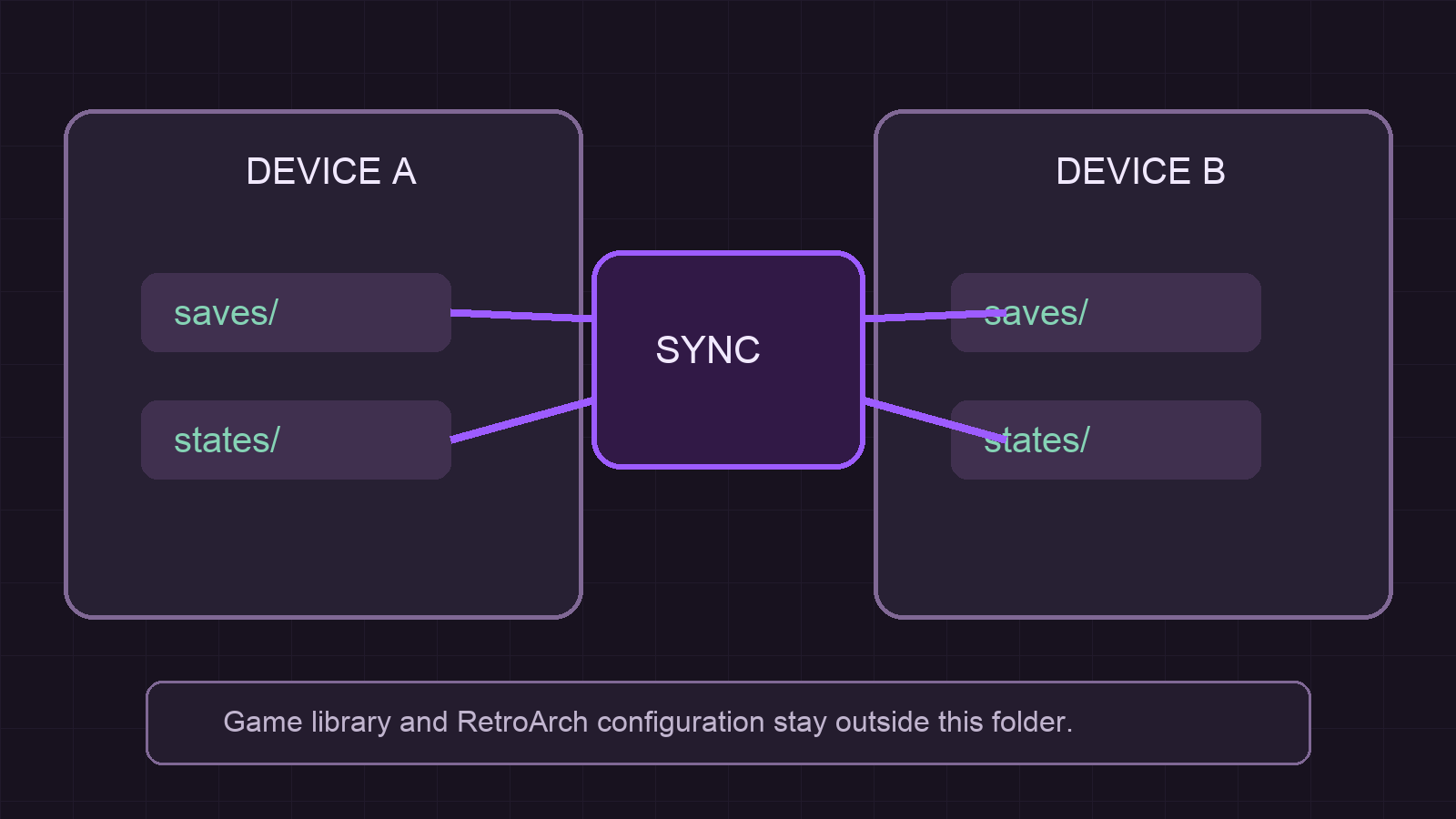
Use one dedicated directory for synchronized saves. Do not point Syncthing at a whole RetroArch installation. That avoids transferring platform-specific binaries, large artwork caches, and configuration changes that can make one device behave like the other by accident.
- Choose a folder outside the game library, such as
/srv/retroarch-sync. - Keep a separate backup of that folder before enabling synchronization.
- Decide whether to sync only save files or save files plus states; begin with saves only when core versions differ.
Create the save directory on both devices
- On each Linux device, create the same-purpose directory and restrict it to the account that runs RetroArch:
mkdir -p /srv/retroarch-sync/saves
mkdir -p /srv/retroarch-sync/states
chmod 700 /srv/retroarch-sync
On macOS or Windows, create an equivalent folder owned by the signed-in RetroArch account. The path does not need to be textually identical across devices; it only needs to hold the same synchronized folder contents.
- In RetroArch, open
Settings -> Directory. SetSave Filesto the localsavesdirectory. SetSave Statesto the localstatesdirectory only if both devices use compatible cores. RetroArch's directory settings are the supported place to change save locations; save the configuration after changing them.
Pair the two Syncthing devices
- Start Syncthing on both devices and open its local GUI, normally
http://localhost:8384/. On device A, chooseActions -> Show ID. On device B, chooseAdd Remote Device, paste device A's ID, name it, and save. Repeat in the other direction with device B's ID.
A device ID identifies the peer that Syncthing expects, so the two-way approval is the point where the trust relationship is created. Device IDs are not passwords, but validate the displayed ID through a trusted channel before approving it.
- On device A, choose
Add Folder. Use an automatically generated Folder ID, label itRetroArch saves, and set the Folder Path to/srv/retroarch-syncor the local equivalent. In theSharingtab, select device B. InAdvanced, useSend & Receivefor a two-device handoff where either device may create a save. Save the folder.
When device B receives the folder invitation, accept it and select its own local path. Confirm the Folder ID remains the same. Syncthing uses that shared ID to recognize the same folder; matching labels alone are not enough.
Keep states and configuration decisions explicit
For two devices with different operating systems or core versions, leave states out of the shared folder until ordinary saves work. The game may load a standard save on both systems while a memory snapshot fails or behaves unpredictably. If the devices are deliberately kept identical, include states and test them one game at a time.
Avoid syncing retroarch.cfg as part of this folder. Directory preferences, controller mappings, display choices, and platform paths are usually device-specific. If a small group of core options needs to travel, document the change and test it separately instead of making the whole configuration directory shared.
Verify both the allowed and denied paths
- On device A, launch one game, create a new in-game save, exit cleanly, and wait for Syncthing to report the folder as
Up to Date. On device B, wait for the same state, launch the matching game with the compatible core, and confirm the new save is available. - Test the boundary as well. Create a file named
not-a-save.txtoutside/srv/retroarch-sync, such as in the game-library directory. It must not appear on device B. That denied-path check proves the setup did not accidentally turn the game library into a replication target.
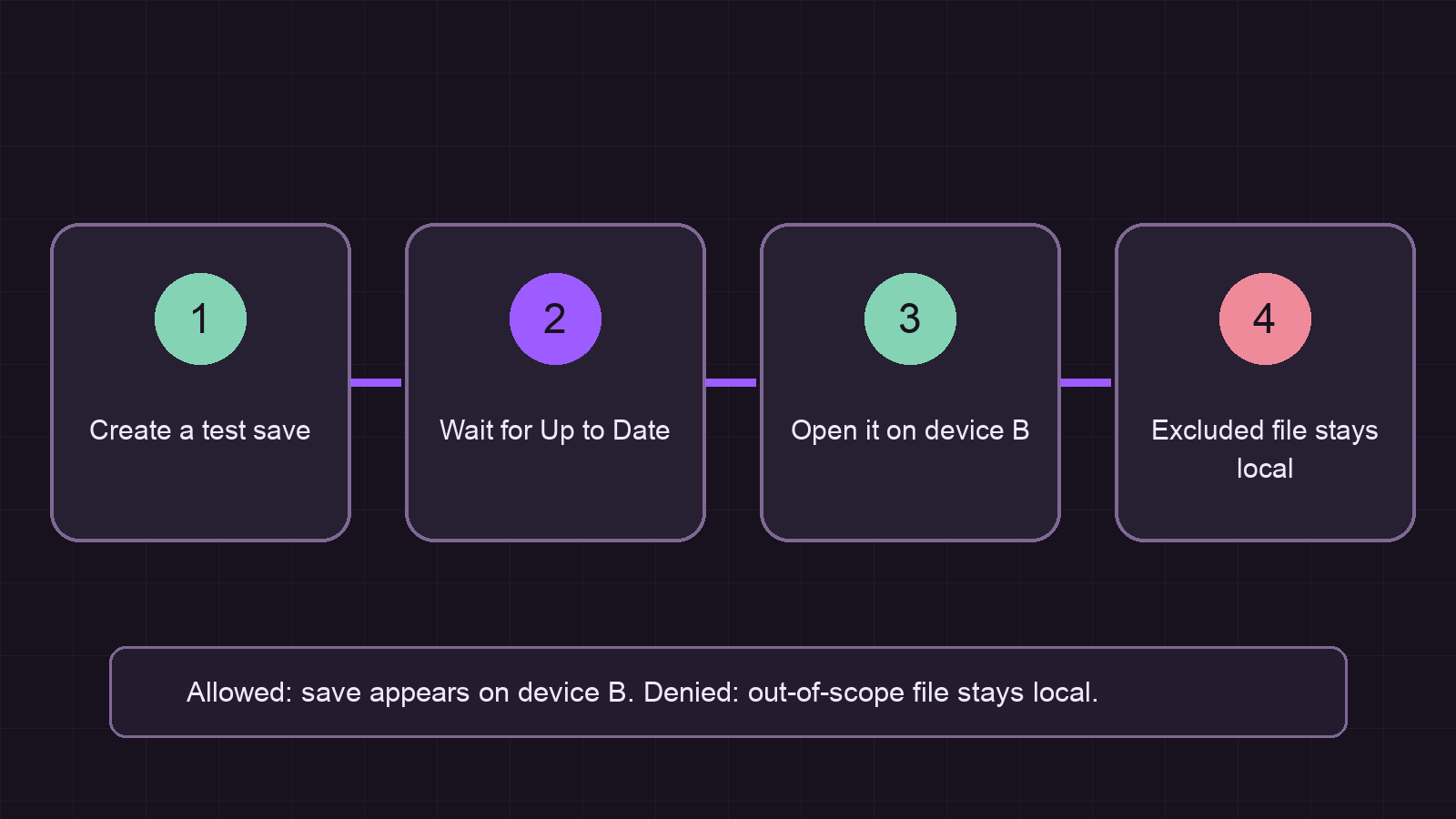
Expected result: Syncthing shows both devices and the folder as current, the intended save appears on device B, and the deliberately out-of-scope file remains local. A conflict copy or an out-of-sync badge is a reason to stop and inspect the competing versions before playing further.
Troubleshoot conflicts and roll back safely
If the devices do not connect, check that both sides approved the other's ID and that the local Syncthing GUI is reachable only from its intended local address. If the folder connects but remains out of sync, confirm the accepted folder uses the same Folder ID and that each RetroArch directory points inside its local shared folder.
For a conflicting save, pause the folder on both devices. Copy the entire /srv/retroarch-sync folder to a dated backup location, compare the conflict copy with the known-good save, and retain the version that opens correctly. Resume synchronization only after placing the chosen version in the shared folder.
To roll back the integration, pause or remove the Syncthing folder on both devices, point RetroArch back to its previous Settings -> Directory -> Save Files location, and restore the backup copied before setup. Removing the sync relationship should be a conscious change, not an attempt to resolve an unclear conflict by overwriting every device.
Sources
Verification ledger